|

BROMCOM: How to import Year 4 MTC Results CTF

You will revive a CTF file with the MTC results that you can import into your Bromcom

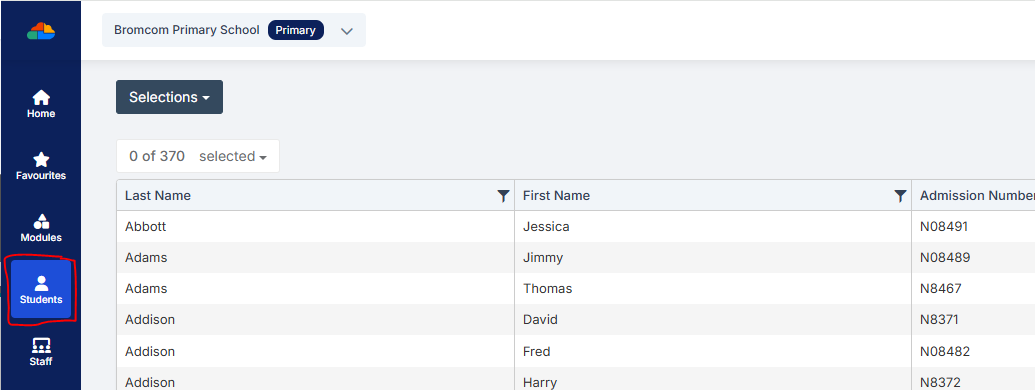
Go to Students from the left hand side menu
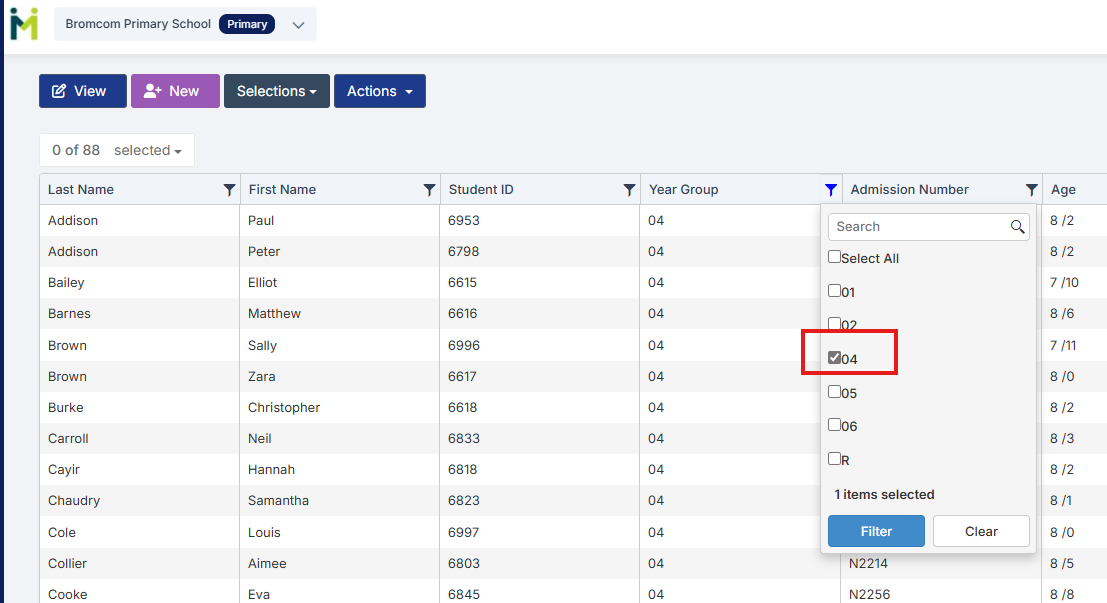
From the Year group filter select Year 4
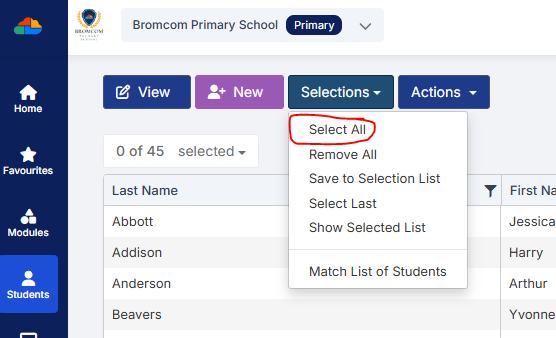
From the Selections button click ‘Select All‘. This should then highlight all your required pupils in blue.
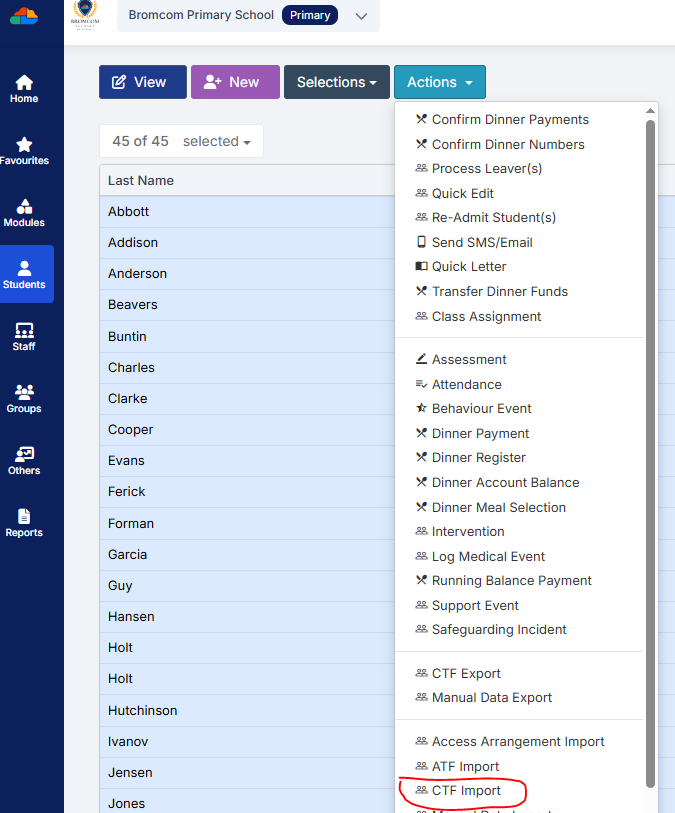
Once you have all your students selected click the Actions button and select CTF Import
Click Browse and find your CTF
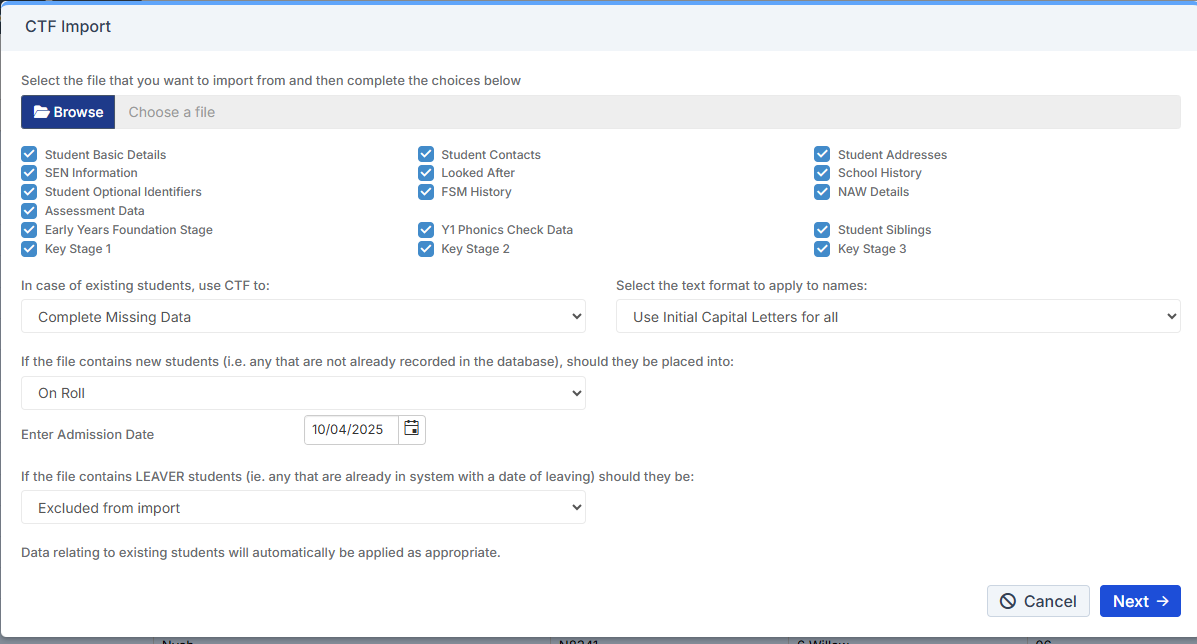
Click which items you wish to Import and Click Next.
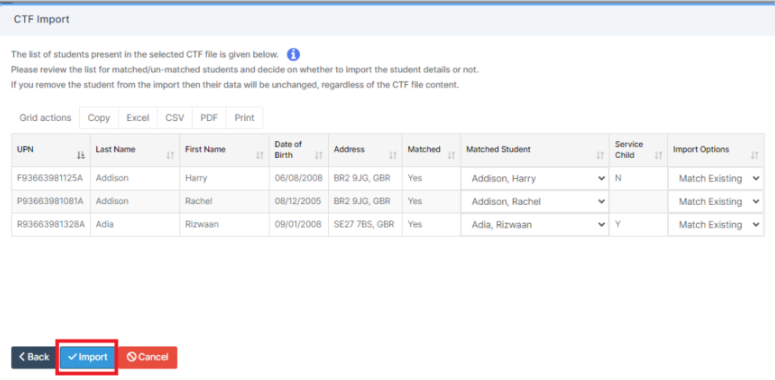
Check the data and the pupils and then click Import 

How useful was this article?

Click on a star to rate it!

Average rating / 5. Vote count:

No votes so far! Be the first to rate this post.

Similar Posts

  • Bromcom Finance & Budgeting : How do I enter a Variance reason in Budget Variances

    Modules> Finance> Homepage> Budgeting> Budget Variances In the budget variances you can add a budget variance reason against e.g a Cost centre as shown in this example below: Note: Any Variance reason needs to be added before you sort your columns – see sorting columns FAQ – Bromcom Finance & Budgets: How do I sort…

  • Bromcom: How to view Year 2’s Phonics results from when they were in Year 1

    If you need to view your current Year 2’s Phonics results from the previous year, you can do so using a report. Go to Reports on the left hand side menu, then Assessment and then Results by Pupil Use the find button to select all of your current Year 2 pupils Now select KS1 from…

  • Bromcom: How to show just statutory columns in a Key Stage Assessment marksheet

    If you want your Key Stage marksheet to show only the statutory marks, you can filter this in some marksheets. Go to Modules>Assessment>Assessment Sheets List Browse to your chosen Key Stage marksheet, in this example we’ve chosen the Year 1 Phonics marksheet KS1-2025-01 In the top right of this marksheet click on the cog icon…

  • Bromcom: How do I add a timetable to a new student starter?

    The easiest way to do this is to copy the timetable from another student.  Highlight the student you want to copy from in the Student List and go to Actions>Class Assignment.  Select all of the classes you want to add to the new student and then click on the Copy button.  The next box asks…

  • Bromcom: How do I add a comment to an attendance mark in the register?

    There may be occasions where you need to add a comment to an attendance mark within the register. To do this you will need to go to Modules > Attendance > Manage Attendance. From here you can select the parameters for the register that you would like view. The register will then load. Click into…

  • Bromcom: Pre-Admissions

    Pre-Admissions in Bromcom Attached is a brief guide on how to carry out the following tasks with regards to Pre-Admissions; Creating a Pre-Admission Group Adding Students Manually Adding a student Via CTF/ATF Communication Using MCAS to share/collect information Sending Messages to parents Managing Admissions Finalise Admissions/Admitting Students Bromcom Pre-Admission documentation How useful was this article?…