|

Bromcom Finance: Unable to search on Cost Centre & Ledger Code fields

When adding purchase orders it isn’t possible to use any of the accounting search fields.
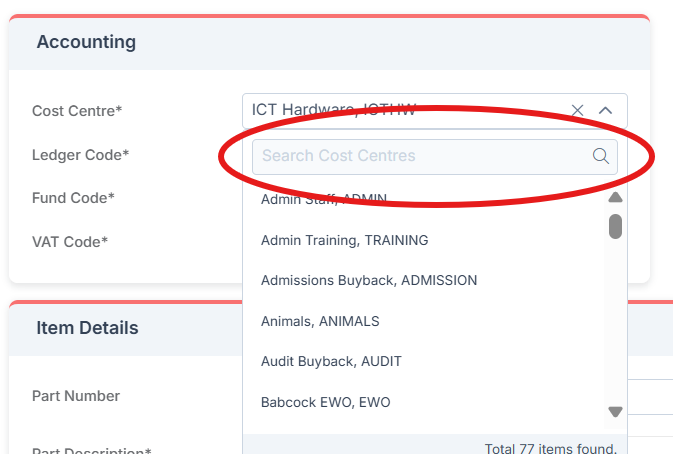
If this is happening please check that your browser and the PC display itself are not on more than 100% on zoom, as well as no half screen or stretched mode etc.

If this does not resolve the issue please contact the service desk.

How useful was this article?

Click on a star to rate it!

Average rating / 5. Vote count:

No votes so far! Be the first to rate this post.

Similar Posts

  • Bromcom Finance & Budgets: How do I sort columns in my Budget Variance

    Modules> Finance> Homepage> Budgeting> Budget Variances You can click on any the heading e.g  Cost Centre Description and drag to above “Drag here to set row groups”   –  see example below before sorting Example after sorting to Cost Centre description Please also see Budget planning user guide     How useful was this article? Click…

  • Bromcom: Exam Results import errors

    When importing your results files into Bromcom it is possible that you may experience one of two errors. The first error as shown above is “Exam Code not in Candidate entered Exams”. This means that Bromcom cannot find an entry that corresponds with the results Exam Code. To resolve this error move the radio button…

  • School Workforce Census Bulletin 2025

    This FAQ lists the latest information regarding the School Workforce Census. It contains links to relevant documentation for Arbor and Bromcom. School Workforce Census Date: Thursday 6th November 2025 School Workforce Census Deadline Date to DfE: Friday 21st November 2025 (If you are a maintained school please consult your LA) Latest Census Information KNOWN ISSUES…

  • Finding your iPad’s MAC Address

    If your the wireless network you are connecting to is a Managed Network, then you will need to provide your Network Administrator with the iPad’s MAC Address. To obtain this first Tap on the Settings Icon… Once in the settings application, you will be in the General Screen as shown below: Tapping on About will…

  • BROMCOM: How To Setup Marksheets for KeyStage

    For Key Stage Assessments after you have access via BROMCOM: How to add ‘Configurations’ to a Role for Key Stage – Frequently Asked Questions Go to Config > Assessment > Configurations and put the tick in Enable Sheet Users.           You can then tick which Staff Roles will require access to the…