|

Bromcom: How do I create a CTF that includes leavers?

If you need to create a CTF that includes both current pupils and those that are leavers for Key Stage DFE Assessments, you can do this using the search filters option from within the student area.

EYFS – Please check with your LA. If you are a Devon school-Upload to Devon Transfer

Phonics – Please check with your LA. If you are a Devon school- Upload to Devon Transfer (Please note: For Devon this is a combined CTF with all Year 1’s and Year 2 retake pupils in ONE CTF. ONLY INCLUDE YEAR 2’S WHO HAVE RETAKEN PHONICS THIS YEAR)

Year 4 MTC – Upload to DFE MTC website

KS2 TA – Upload to National Assessment agency website

Go to Students on the left hand side menu

Click on Search Filters in the top right

Here you can change the active dates accordingly, to include your current pupils and any leavers you need to too

Now you can close the filter and your list will show any pupils who are enrol within the date range you’ve chosen, and you can then create your CTF.

Select the pupils you need to include in the CTF by clicking on them to highlight them in blue, and then use the actions button at the top and choose CTF Export
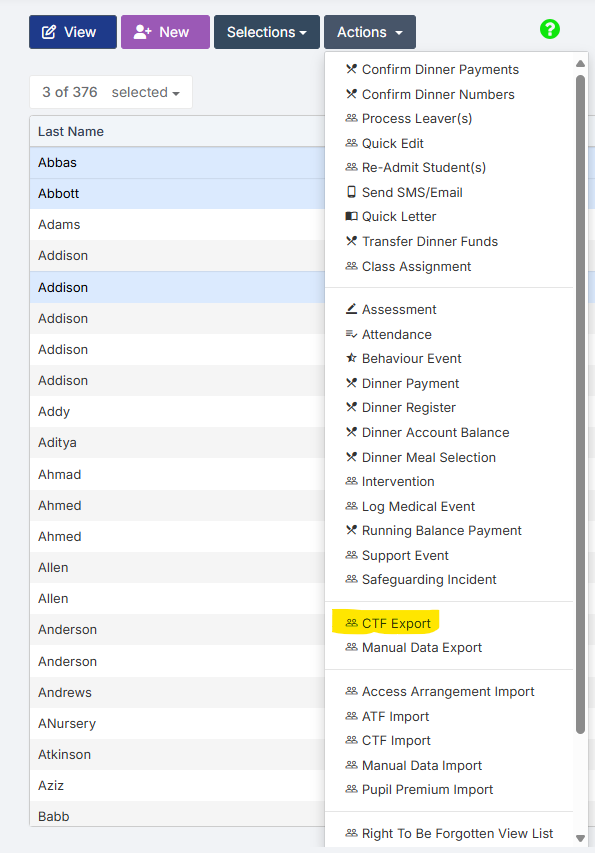
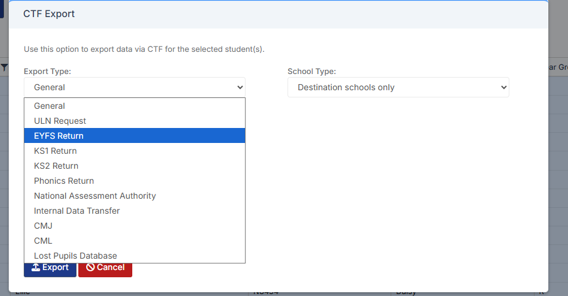
Select the required Export Type

(Please confirm below with your LA)

For EYFS the export type is- EYFS Return

For Year 1 and Year 2 phonics the export type is- Phonics Return

For Year 4 MTC the export type is- Either National assessment authority or Internal Data transfer

For Year 6 KS2 TA  the export type is- National assessment Authority
For EYFS and Phonics tick the LA return box and select your LA.
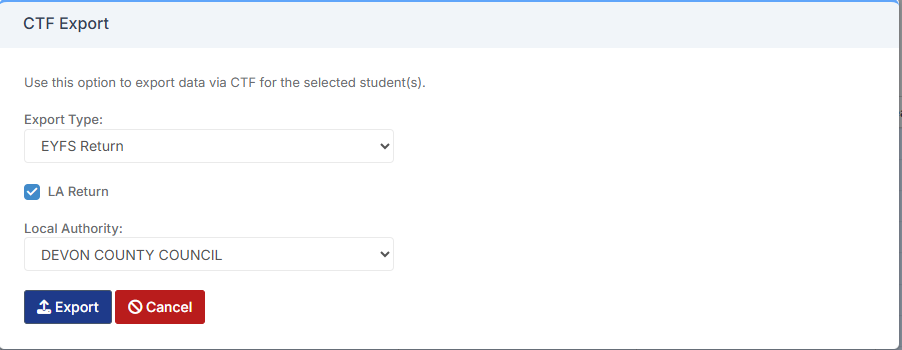
Click Export

This file will then go to your Downloads ready for you to upload.

How useful was this article?

Click on a star to rate it!

Average rating / 5. Vote count:

No votes so far! Be the first to rate this post.

Similar Posts

  • Bromcom: Why can’t I add a new room to Exams?

    In order for a room to appear within Exams it must first be added in Config > Administration > Rooms Once it has been added here you will then need to go to Config > Examination > Exam Rooms and click New. You will then need to click on the magnifying glass icon which will…

  • Bromcom: How to show just statutory columns in a Key Stage Assessment marksheet

    If you want your Key Stage marksheet to show only the statutory marks, you can filter this in some marksheets. Go to Modules>Assessment>Assessment Sheets List Browse to your chosen Key Stage marksheet, in this example we’ve chosen the Year 1 Phonics marksheet KS1-2025-01 In the top right of this marksheet click on the cog icon…

  • Bromcom: Updating Staff Current Job Title

    To update the staff current job title in bulk go to Staff > Selection > Select All and then Actions > Manual Data Export. From here select “Basic Details” and tick “Include empty records where data does not exist” and click Export Open the spreadsheet that has been downloaded and enter all required information. After…

  • Third Party Application integration with Bromcom

    When looking to integrate a third party application, it’s best to liaise with the third party for more detailed instructions. The purpose of this guide is to explain how a new User Account can be created to give Third Party Supplier’s access to data in your MIS system through Bromcom’s API interface, which is required for all…

  • Bromcom: How to see who has received MCAS push notifications

    To see who has received push notifications you can use Modules > Communication > Overview to see who push notifications have been sent to:         You can use Modules > MyChildAtSchool > Overview to review app installations:     Additionally there is an MCAS domain in Quick Reports for the school to…

  • BROMCOM: How to import Year 6 CTF SATS

    Once your Year 6’s have completed their SATS you will revive a CTF file with the results that you can import into your Bromcom Go to Students from the left hand side menu From the Year group filter select Year 6 From the Selections button click ‘Select All‘. This should then highlight all your required…