Configuring Exam Timetables and Results in MyChildAtSchool
It’s possible to add both exam timetables and results to MyChildAtSchool (MCAS), the following KB will detail how to activate the areas in MCAS, and how to configure them.
Navigating to the Configuration Area
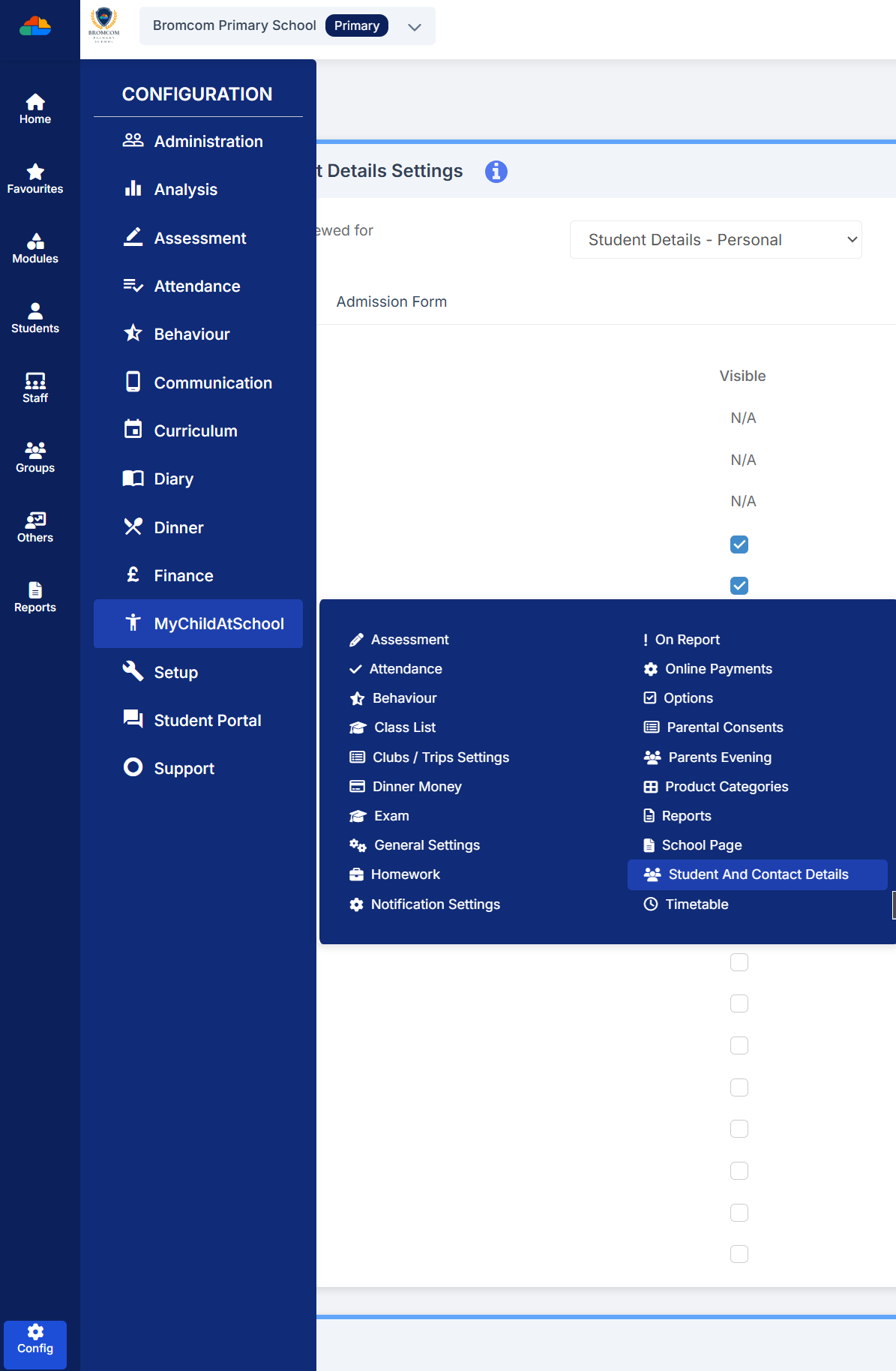
To begin with, browse to Config>MyChildAtSchool>Exam.
Activating the Modules
Both the results and timetables can be activated separately, this can be done by ticking the Enable Exam Results, or/and Enable Exam Timetabes. After ticking the enable options clicking the save button in the top left of the page will update MCAS for all parents/guardians.

Displaying Exam Results
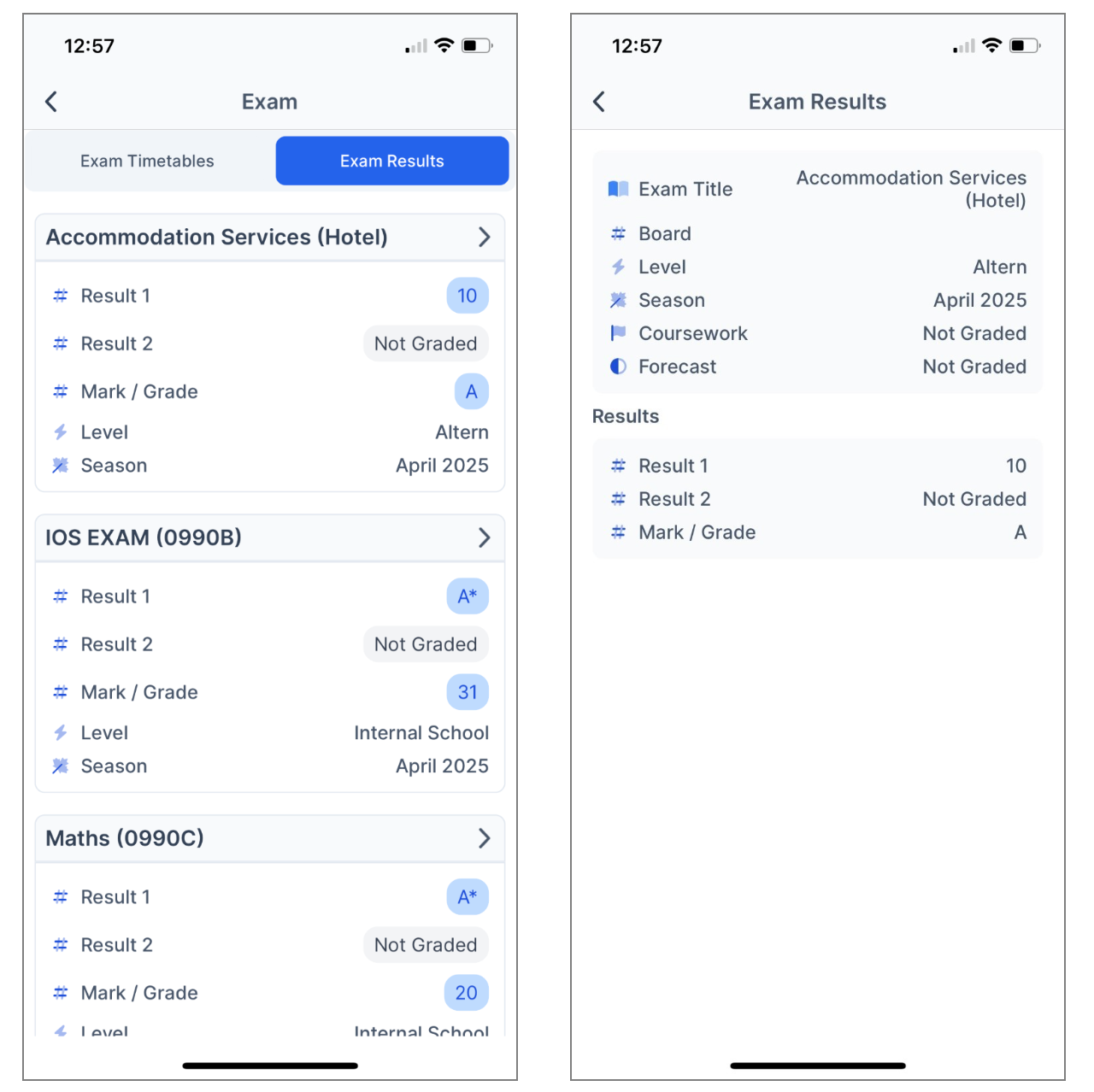
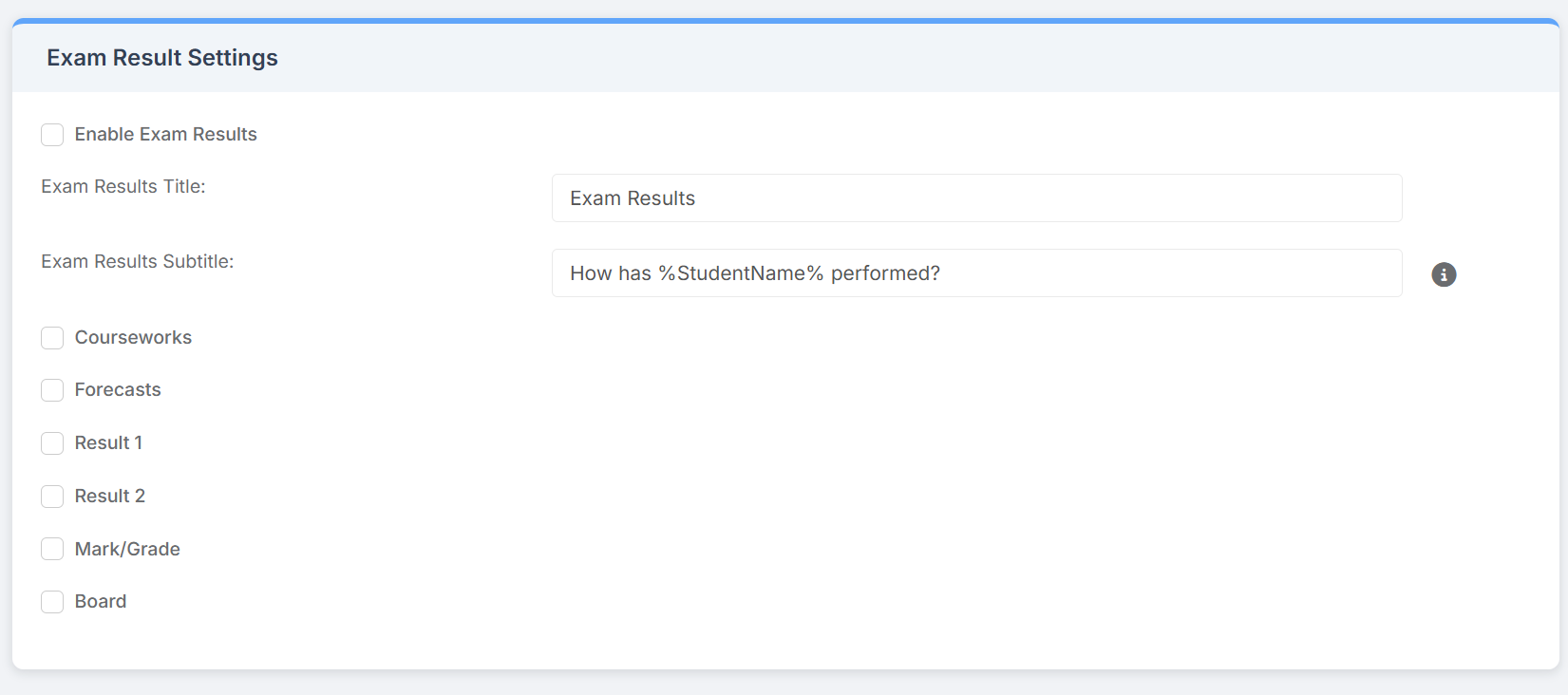 In the Exam Results area you can toggle what detail you want to appear in the results section of MCAS, below is a screenshot of what enabling all of the options would look like to a parent/guardian
Displaying Exam Timetables
In the Exam Timetable area you can manage how the timetable will look for parents/guardians looking at the app. You can choose to show past exams, limit the number of days included in the timetable, and pick which seasons you want to appear.
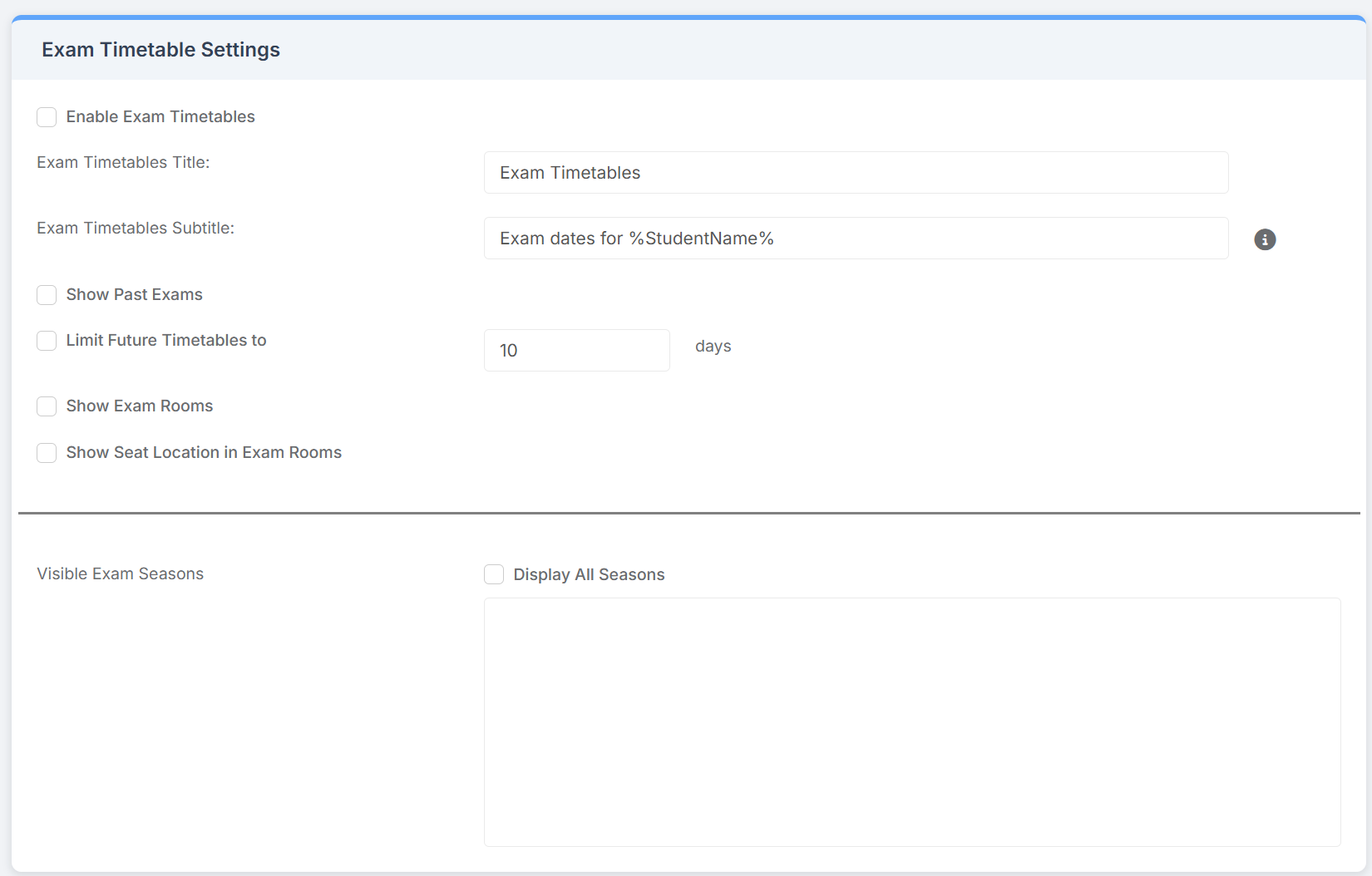
By default the timetable settings will want you to select which season(s) appear in the app. However, if necessary, you can tick the “Display All Seasons” option which will show exams from any season depending on whether you’ve ticked either the “Show Past Exams” or “Limit Future Timetables to”