Configuring Clubs, Trips, and Wraparound Care in MyChildAtSchool
It’s possible to display details on Clubs, Trips, and Wraparound Care in MyChildAtSchool. In giving parents/guardians access to these areas you’re enabling them to book, and pay for their children to attend these activities. The following KB will details the configuration settings available for these areas.
Navigating to the Clubs/Trips Settings Page
The Clubs/Trips Settings page is located under Config>MyChildAtSchool>Clubs/Trips Settings
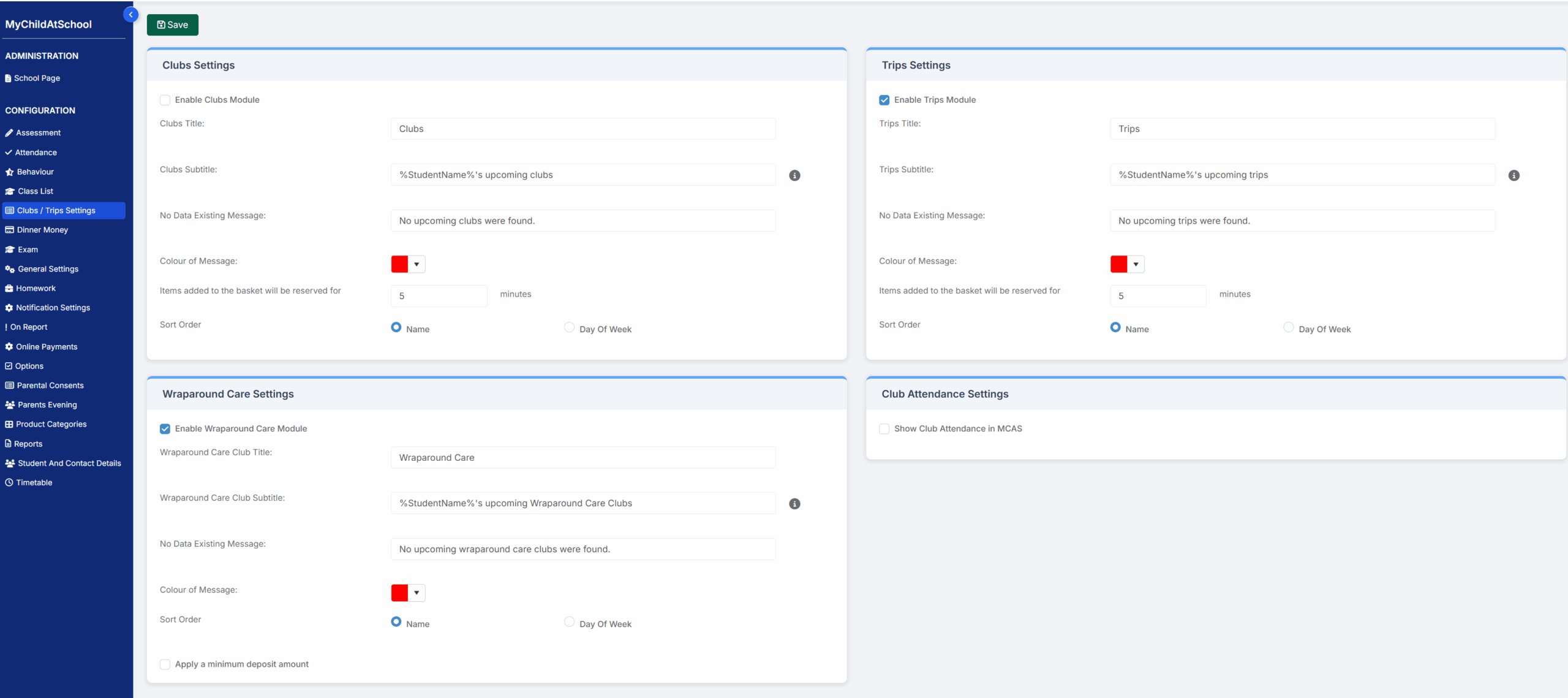
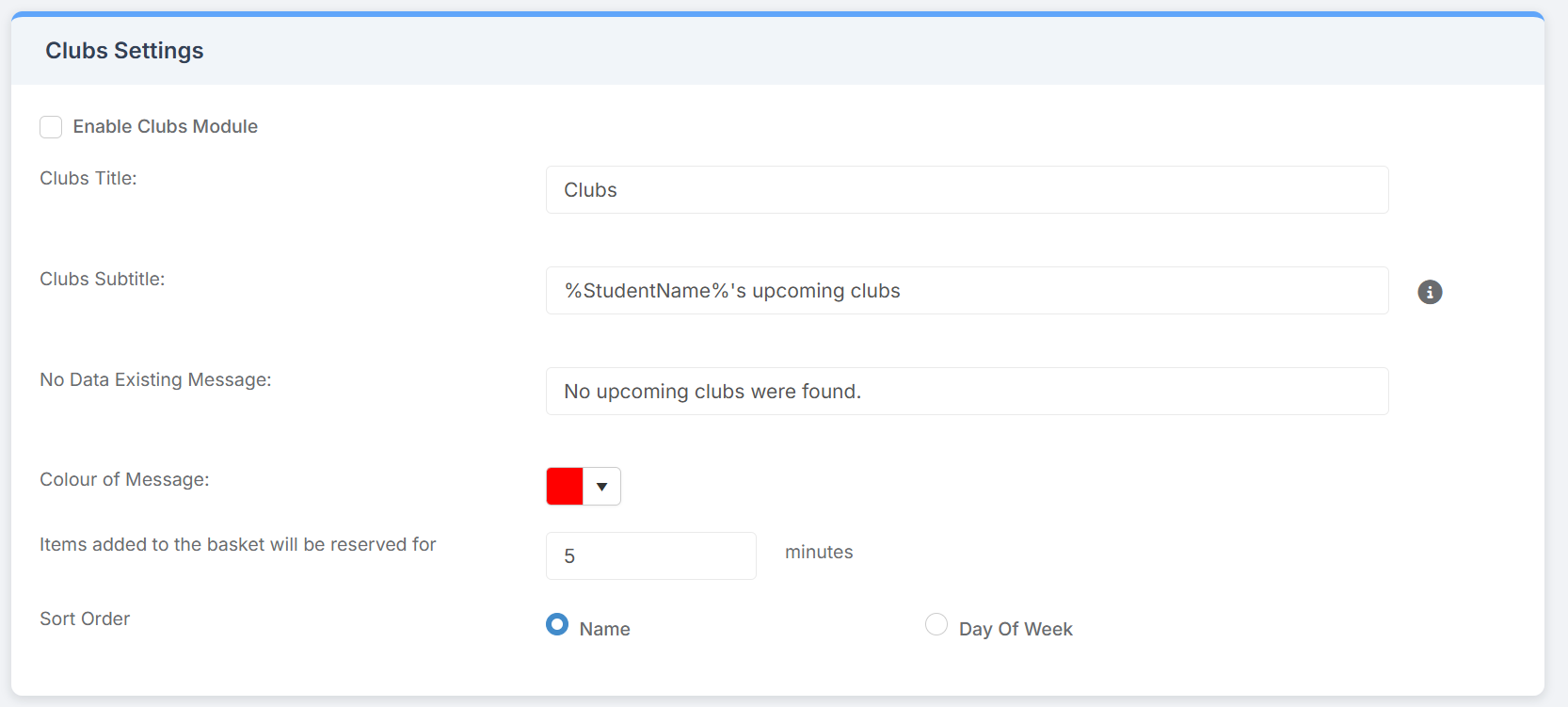
Clubs Settings
After enabling the clubs module by ticking the “Enable Clubs Module” box at the top of the section, you’ll be able to configure how the page appears for parents/guardians on the App by adjusting the title and subtitle. You can change the message that appears when no clubs are available, as well as what colour the text appears in. As part of this setup area you can also set a time for how long a place is reserved for when a parent adds an item to the basket, the default time is set to 5 minutes. Finally the sort order allows to configure how the clubs will be listed in the App if there is more than one club available.
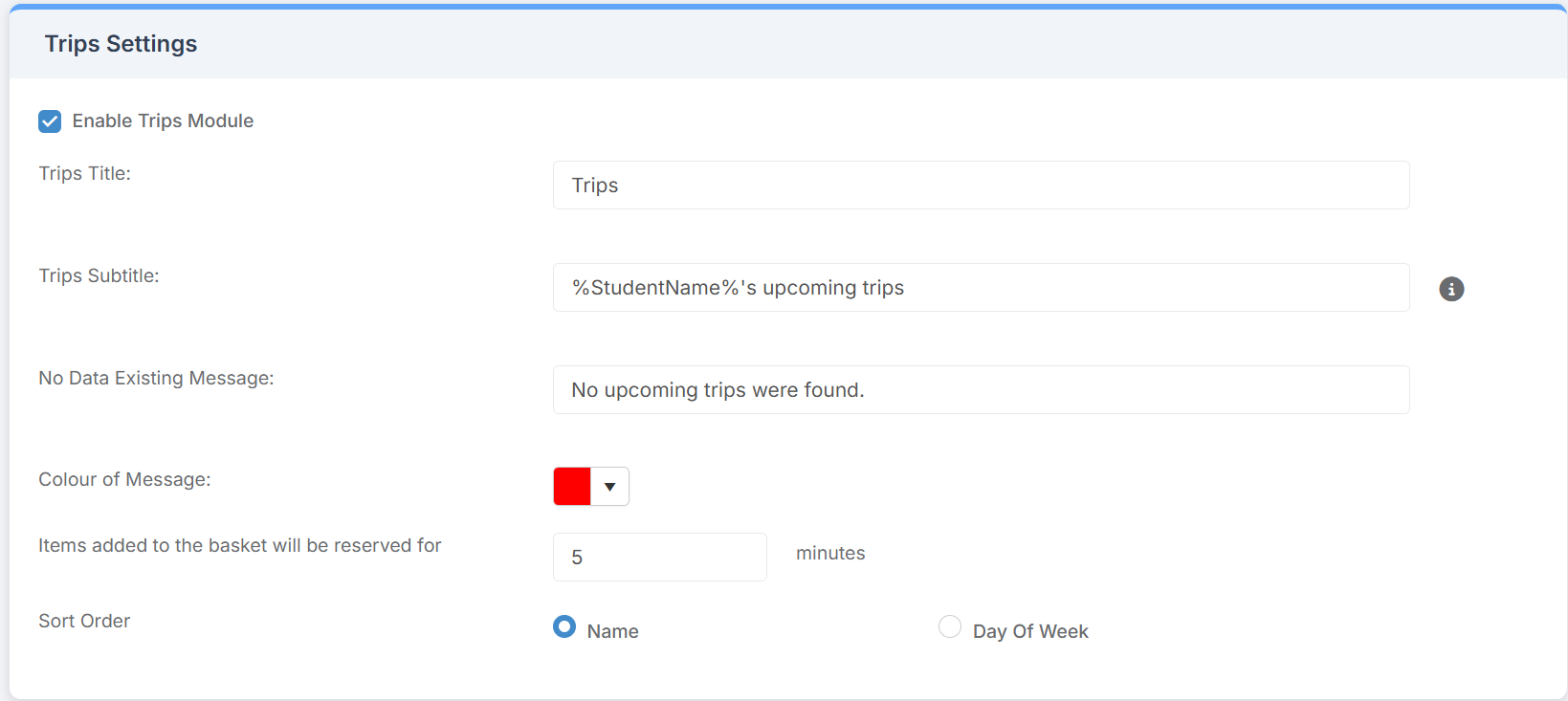
Trips Settings
Trips work in the same way that Clubs work, the settings are a mirror image of those used for Clubs. Just as with Clubs you can customise the title and subtitle that appear in the App, as well as changing the text that appears when there aren’t any trips.
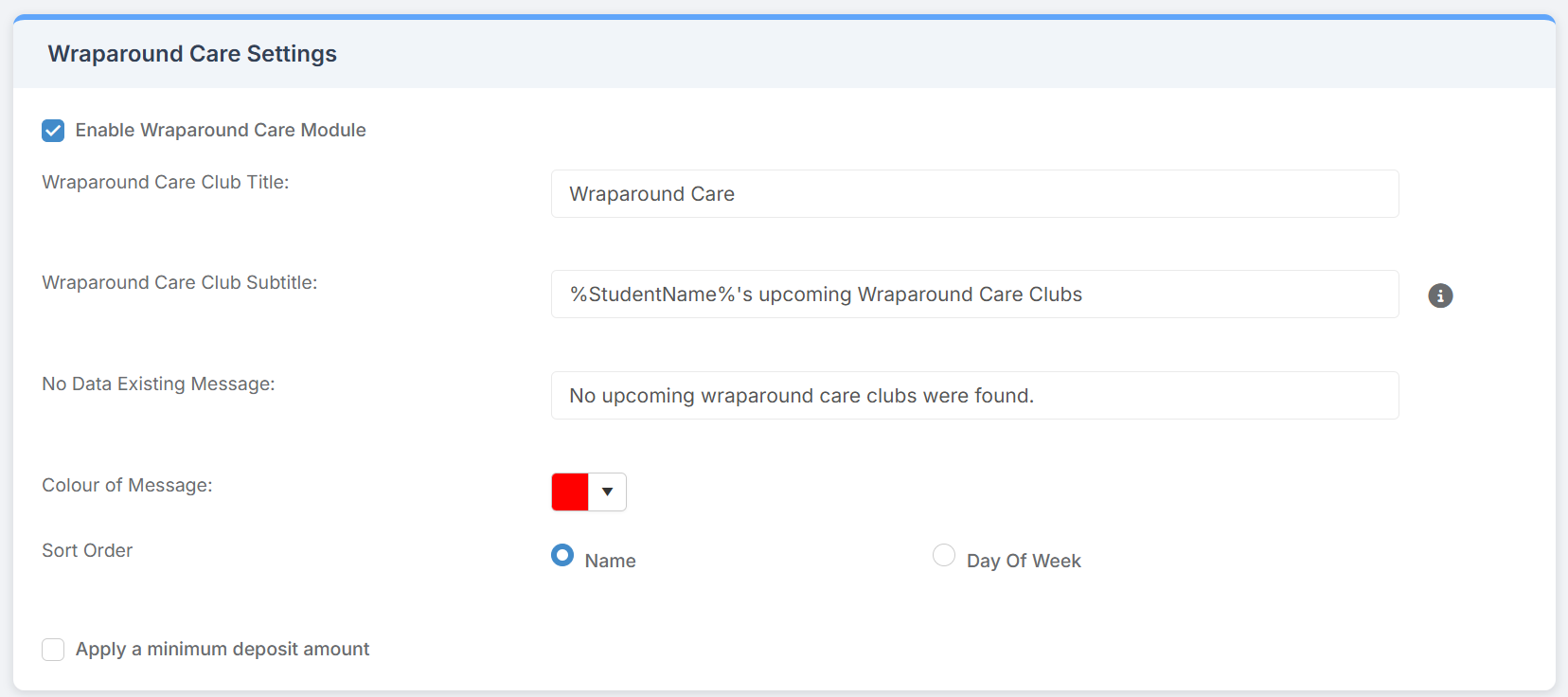
Wraparound Care Settings
The Wraparound Care settings are mostly the same as the previous two, however you can also apply a minimum deposit amount in this area, this will apply to anything added under the Wraparound Care area
Club Attendance Settings
It’s possible to record attendance for clubs, this can be done from the Groups menu in Bromcom, please click here for more details. In this area, you can choose whether you want to show club attendance in MCAS.
