|

BROMCOM: DEVON- How to upload CTF’s to Devon Transfer

How to upload your Phonics and EYFS CTF’s to Devon Transfer.

If you are a Devon school you need to upload two CTF’s to the Data and Assessment team at Devon County Council.

Once you have created your CTF’s- BROMCOM: How to create a Key Stage DFE assessment CTF – Frequently Asked Questions

Log into Devon Transfer – AnyComms+ Login

Please see the following if you have forgotten your login- Anycomms – Support for schools and settings

Click Upload to Service 

Find your EYFS CTF (this should be called something like 8309999_FSP_830LLLL_001) and select EYFSP from the drop down. Then select Devon Education Services.
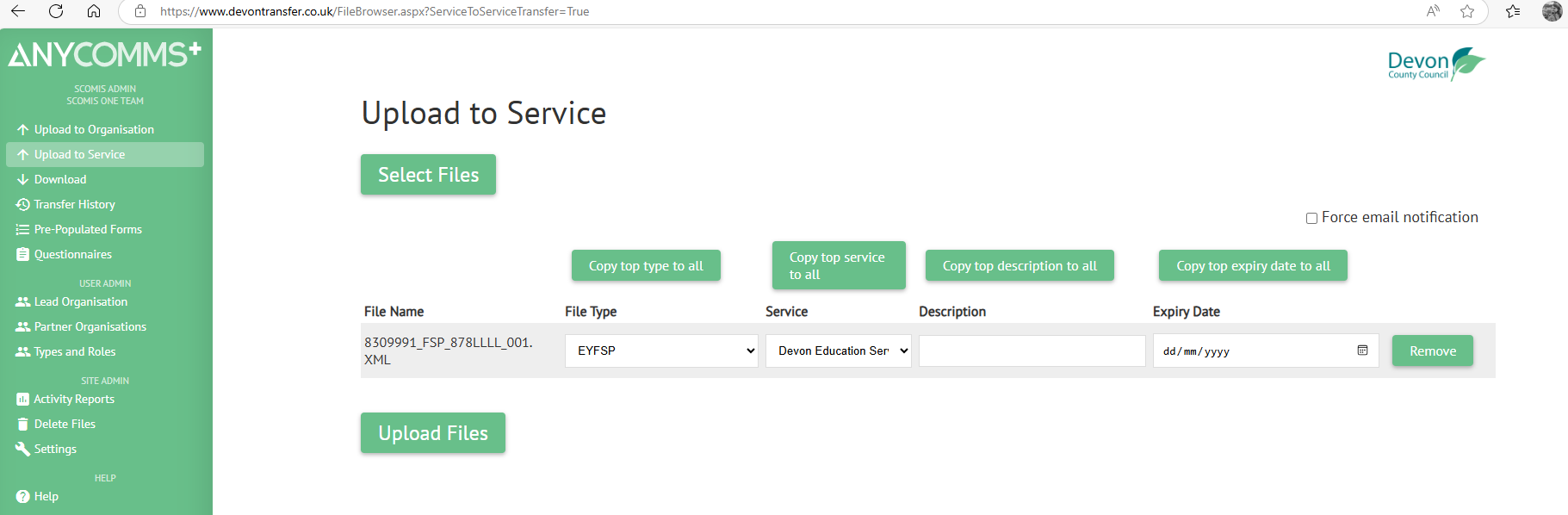
Once you are happy click Upload Files 

Repeat for your Phonics CTF 

Find your Phonics CTF (This should be called something like 830999_PHO_830LLLL_001) and select Phonics Yr1+Yr2 retakes Combined. Then Select Devon Education Services. 
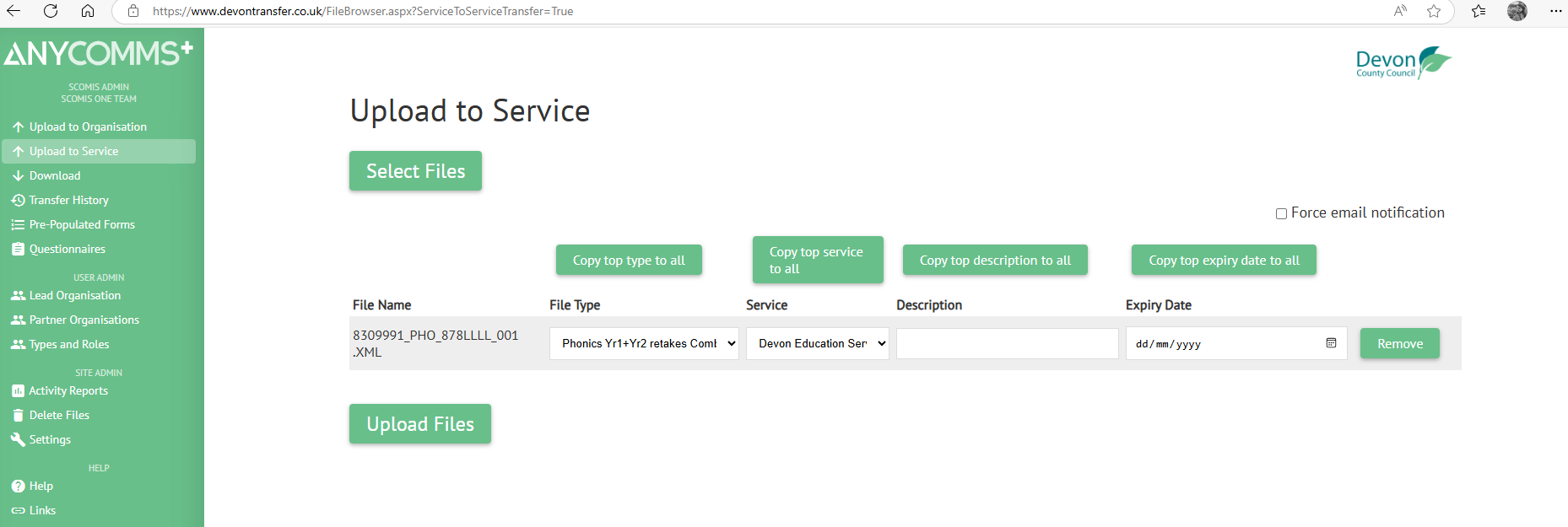
Once you are happy click Upload 

Your KS2 CTF should be uploaded straight to the Primary Assessment Gateway- Submitting key stage 2 teacher assessment data in 2025 – GOV.UK

How useful was this article?

Click on a star to rate it!

Average rating / 5. Vote count:

No votes so far! Be the first to rate this post.

Similar Posts

  • DEVON SCHOOLS ONLY – Submitting Claims through iTrent

    The employee is able to do this through self-service and you can then approve the claim once the system is available, or your administrators can input the claim on behalf of the employee via fast input, from a paper form. If you have administrators who are inputting from the paper process, please note the forms…

  • Configuring Data Collection Sheets in MyChildAtSchool

    MyChildAtSchool (MCAS) can be used to give parents/guardians access to data collection sheets. In this KB we’ll show you how to configure data collection sheets both for current students, and preadmissions. Navigating To The Settings You can configure data collection sheets under Config>MyChildAtSchool>Students And Contact Details Settings Form Permissions In the Students And Contact Details…

  • How to manually add new equipment to Equipment Register

    Focus > Equipment > Add > Complete the Basic details tab. The system will generate a new Equipment Number (the next available in the system) when you click the Save button, after entering the new equipment details. Click Save How useful was this article? Click on a star to rate it! Submit Rating Average rating…

  • Bromcom – Readmit student

    To begin, go to the Student List page. From there, press Search Filters on the top right and change the Status to Leaver. Now select the student/s that you wish to Re-admit and press Actions>Re-admit Student(s). If you are Re-admitting multiple students, the Re-admit Date you select is going to apply to each student so please double check the dates you need before proceeding. Further and full information can be found here: How to…

  • Bromcom: Pre-Admissions

    Pre-Admissions in Bromcom Attached is a brief guide on how to carry out the following tasks with regards to Pre-Admissions; Creating a Pre-Admission Group Adding Students Manually Adding a student Via CTF/ATF Communication Using MCAS to share/collect information Sending Messages to parents Managing Admissions Finalise Admissions/Admitting Students Bromcom Pre-Admission documentation How useful was this article?…

  • School Workforce Census Bulletin 2025

    This FAQ lists the latest information regarding the School Workforce Census. It contains links to relevant documentation for Arbor and Bromcom. School Workforce Census Date: Thursday 6th November 2025 School Workforce Census Deadline Date to DfE: Friday 21st November 2025 (If you are a maintained school please consult your LA) Latest Census Information KNOWN ISSUES…