Bromcom Finance: Base Pay mapping FAQs
Please see this guide for commonly asked questions around “Base Pay Mapping” If you need assistance with setting up mapping please see the following FAQ How to add Base Pay Mapping
Scenario 1 – I have staff with the role of “Teaching assistants ” that need to be mapped to multiple cost centres
In Bromcom Base pay mapping you can only map a financial group to one cost centre. If you map a financial group to multiple cost centres this will cause issues in salary projections, where staff could show across multiple cost centres and this would cause an increase in cost centre commitments. We suggest you utilise financial groups (Config> Administration> Lookup tables> Financial groups) E.G Use Wraparound and Nursery financial groups for after school/Nursery staff.
Example scenario: Main school teaching assistants would have the role of teaching assistants and be linked to the teaching assistant cost centre. Staff working in the after school club could have the role of extended school support, as this would mean you could add a separate mapping for this role. The reason for this is the staff will then show in the relevant cost centres in salary projections. If you choose to go down this route, the roles will also need to be changed within the staff contracts.
Scenario 2 – How do I map staff to multiple funds. E.g Fund 1, Fund 2 etc
For staff roles that cannot be separated using financial groups e.g Teachers, please see the following FAQ : How do I map my classroom teacher to multiple funds?
Scenario 3 – Why does my mapping have a “No” in the default column in Base Pay Mapping?
This is because you have a duplicate mapping. Your combination matches another mapping where the financial sub group has been mapped to another cost centre. See Scenario 1 if this applies.
Scenario 4 – My overtime is failing reconciliation.
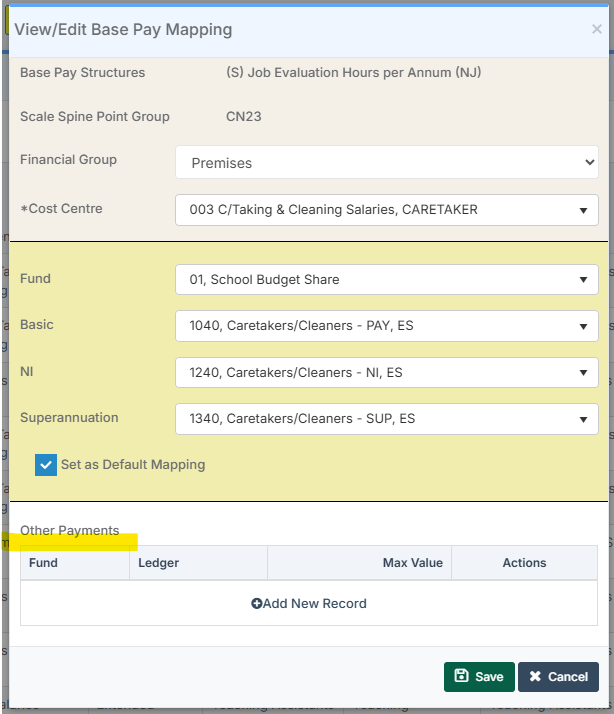
This is because you have not mapped your overtime ledger code in the base pay mapping. To do this, please open the appropriate base pay mapping line and add the ledger code for overtime, located under “Other Payments” and click ‘Add Record’ to add in the ledger code and overtime limit e.g. £500. Once you have added the overtime ledger in, click the tick and then save.
Once this has been done, you can return to the reconciliation screen and reprocess the file. The overtime should then reconcile.
Base Pay Mapping Rules
1) You can only ever have ONE Financial group mapped to ONE cost centre only. You cannot use the same Financial group mapped to multiple cost centres.
2) You can use the same Financial group/Cost centre combination across multiple base pay structures
3) You can only use ONE Fund e.g. Fund 01 for any Financial group/Cost centre combination. E.G You cannot map a teacher on main pay scale to fund 1 and fund 2, you would need to refer to scenario 2.