Key Stage 2 Comparative report- BROMCOM

The national statistics for the Bromcom Comparative report found under Reports>Assessment>Comparative Report is not currently available

Scomis has created a Word web merge template for you to use for KS2 results

See the below that Scomis has made for you

You can edit the wording, header and footer as well as the columns to suit your school.

Template- KS2 TA and SATS

Report- KS2 TA and SATS 20250711104452

1. Download both above links and unzip the report file

2. Open the File called Template for KS2 and edit it to suit your school- including adding a header and any other text you would like and then click Save on the Word document.

3. In Bromcom go to Reports>Quick Reports> View Reports or Reports>Adhoc>View Reports

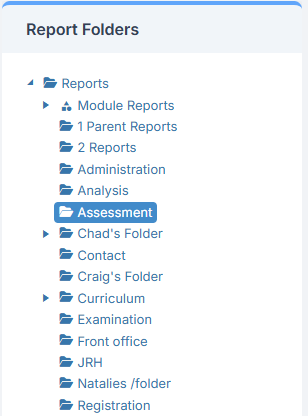
4. Select a Folder from the right hand side e.g Assessment
5. Click ‘Actions’ and then ‘Import Report Definition’
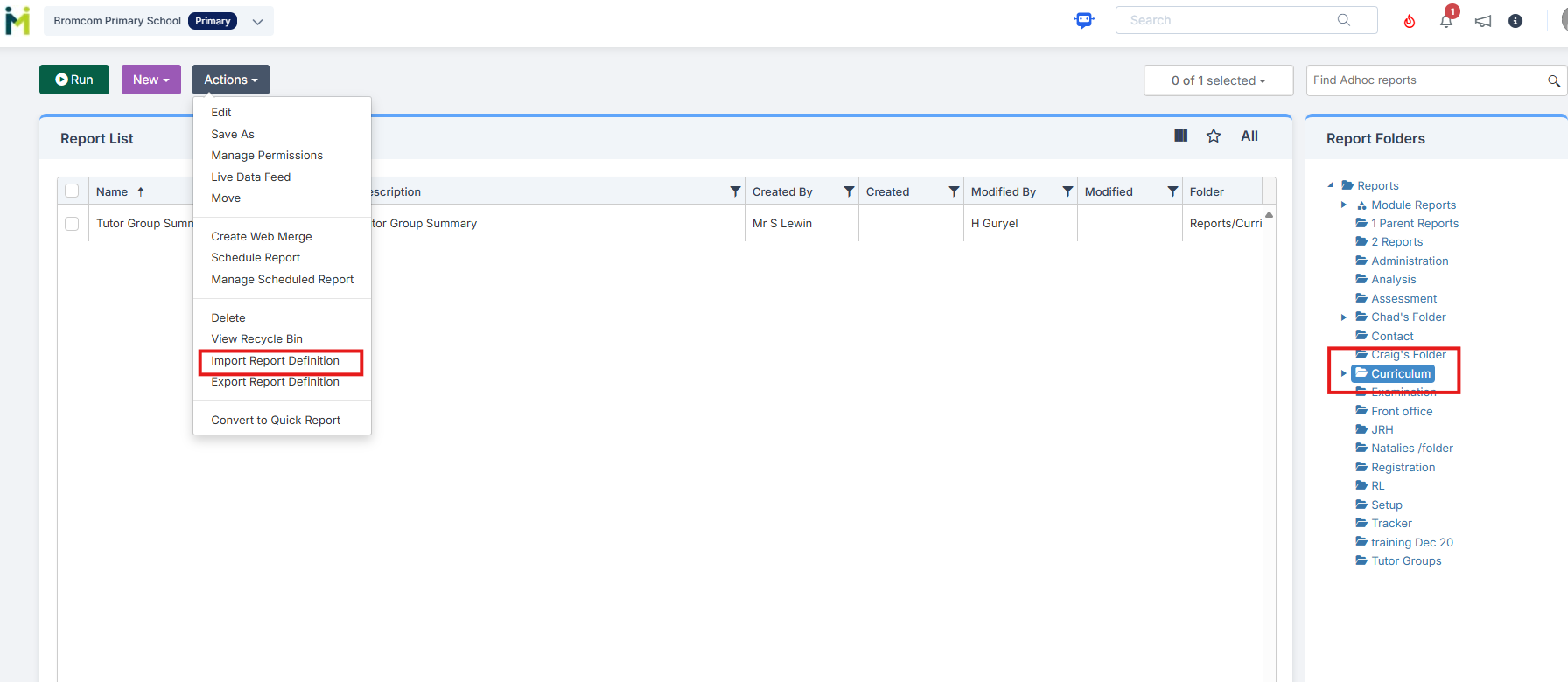
6. Import the report file called KS2 TA and SATS

7. Highlight the Report- Select it and click ‘Run’

8. Click ‘Web Merge’
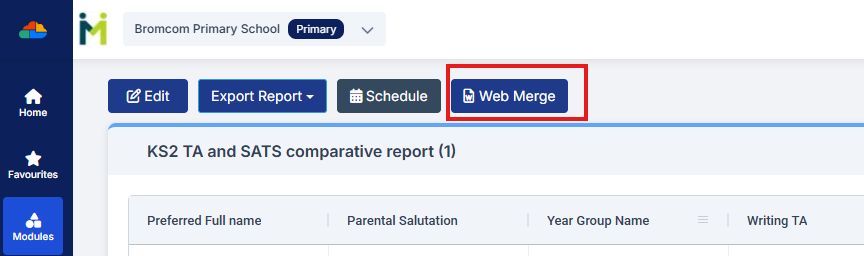
9. Select your edited template to be imported from the ‘Browse’ button

10. Click ‘Next’

11. Click ‘Next’ again

12. On page 3 ‘Advanced Options’ click the ‘Add Filter’ button. Change the drop down to ‘Year Group Name’ and in the ‘Value’ box enter your schools Year 6 year group name e.g 6, 06, Yr6, Yr06, Year 6
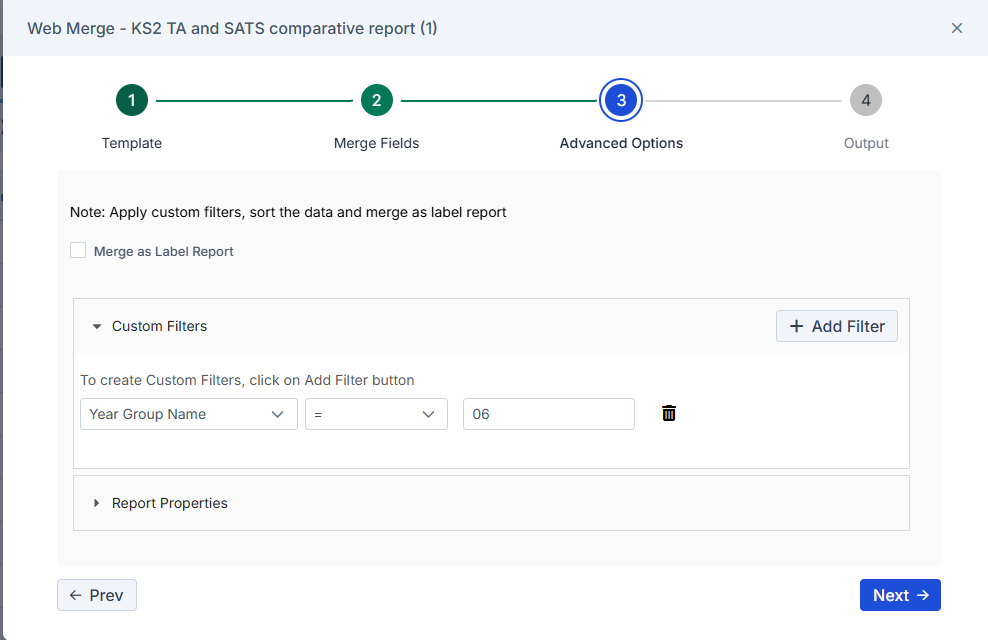
13. Click Next

14. Change the radio dot to ‘Word’

15. You can add a tick in ‘Copy to DMS’ if you wish to email the file directly to parents if your school uses MCAS

16. Click ‘Save & Process’

17. Open the file from your downloads and check the information is showing as expected

NOTE: School Results

If you wish to add results into the ‘School Results’ column- Please run the Reports>Assessment>Comparative Report for KS2 and 2025 and manually add the school results to the Template file. If you don’t want the ‘School results’ column please right click the column to remove it from the Template.

How useful was this article?

Click on a star to rate it!

Average rating / 5. Vote count:

No votes so far! Be the first to rate this post.

Similar Posts

  • Bromcom: How to view Year 2’s Phonics results from when they were in Year 1

    If you need to view your current Year 2’s Phonics results from the previous year, you can do so using a report. Go to Reports on the left hand side menu, then Assessment and then Results by Pupil Use the find button to select all of your current Year 2 pupils Now select KS1 from…

  • BROMCOM: Which Marksheet to Enter Phonics Results

    In Bromcom via Modules > Assessment > Assessment Sheet List, the Phonics is Entered in the Marksheet named KS1-2025-01 for Year 1 Pupils. For Year 2 Phonics Retakes – This is entered in KS1-2025-02  The marks are entered in the Phonics Screening Check Mark This takes you through how to Enter in Marks How useful…

  • BROMCOM: EYFS Key Stage Return

    EYFS is for every child in the final term of the year in which they reach age 5 Please contact your LA for deadline date or see here if you are a Devon County Council school- BROMCOM: Devon County Council- Key Stage Upload dates – Frequently Asked Questions For more information please read the following…

  • Bromcom: How to enter marks into Key Stage DFE assessment marksheet

    Once you have opened your marksheet- BROMCOM: How to View Marksheets as a Teacher or Admin – Frequently Asked Questions you will need to enter your marks There are three ways to enter marks into Bromcom  You can enter marks by  clicking in each cell and entering the marks 1 by 1 Alternatively if you…

  • BROMCOM: Phonics Screening Check 2025

    This FAQ is for the users in school who need to carry out the Phonics Screening Check. The collection of the Phonics Screening Data Check is for Key Stage 1 All Pupils in Year 1 and Year 2 Pupils who didn’t meet the threshold last academic year.  For further guides please see the following Scomis Bulletin-…

  • Bromcom: How to show just statutory columns in a Key Stage Assessment marksheet

    If you want your Key Stage marksheet to show only the statutory marks, you can filter this in some marksheets. Go to Modules>Assessment>Assessment Sheets List Browse to your chosen Key Stage marksheet, in this example we’ve chosen the Year 1 Phonics marksheet KS1-2025-01 In the top right of this marksheet click on the cog icon…