Password Resets in Bromcom system
The below information is relevant only for schools who do not use the single sign on method. If the user has forgotten the password for their Microsoft or Google tenancy, this will need to be managed by the administrator of that system.
For Bromcom users who have email addresses associated with their account, they can reset their own password by clicking the Forgotten Details link on the Bromcom login page.
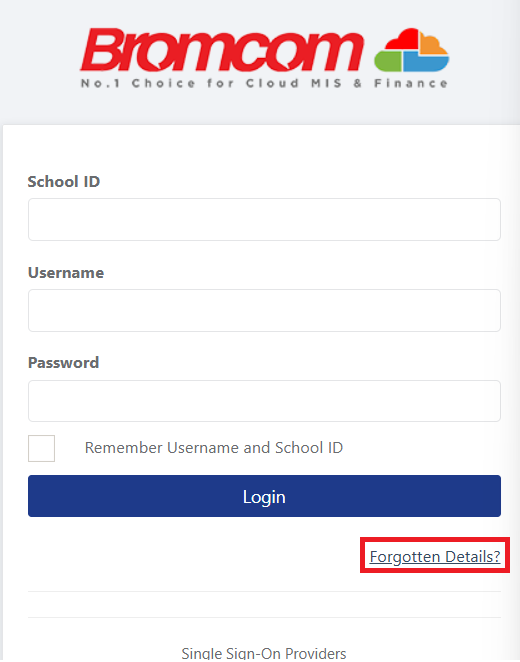
The user will then be prompted for the schools five digit Bromcom school ID, as well as their email address. This will send a password reset email to the specified address if it matches with the account configured in the Modules > Setup > System Security > System Users screen.
Alternatively, a system administrator can send a password reset email in the system for the user by browsing to Modules > Setup > System Security > System Users and clicking the Send Reset Password Link button.
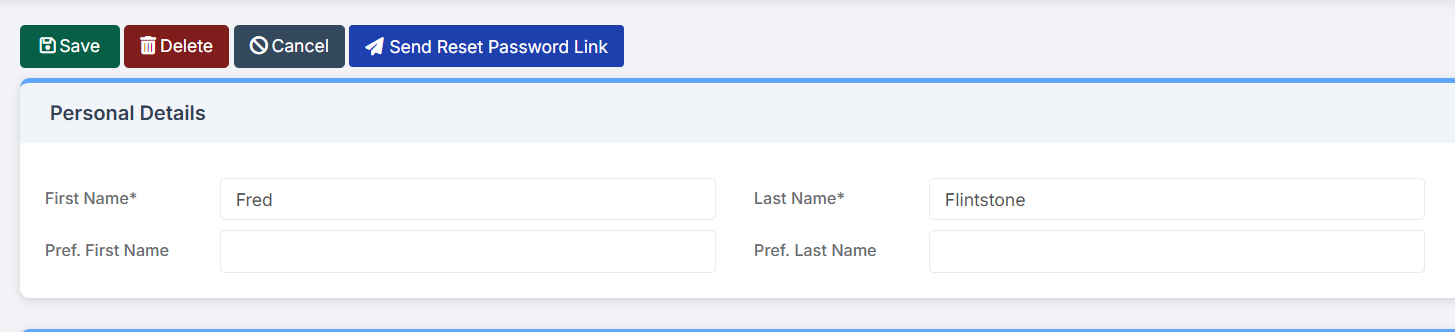
It’s worth confirming that the email address is both entered and is correct on the account.
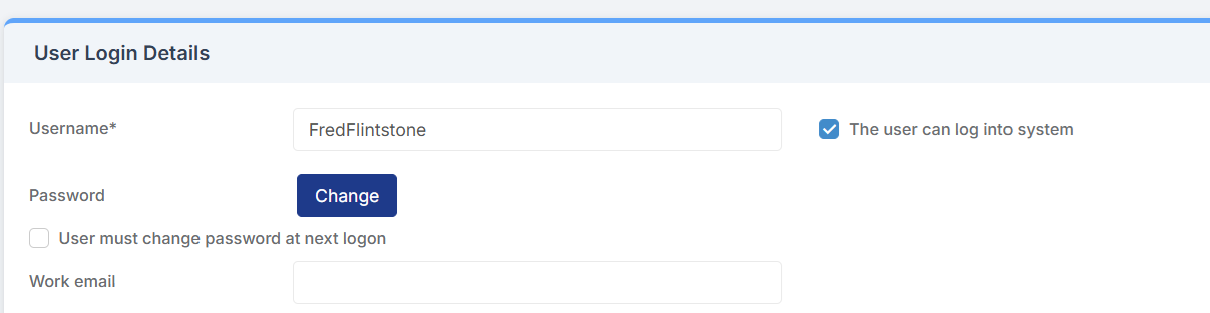
You can click the Change password button to manually set a password for the account, but this is not recommended, and if used, the ‘User must change password at next logon’ box should be ticked to ensure the user sets their own password.