|

MCAS – Dinney money widget is missing to add payments

Parents are unable to see the “Dinner money” widget to add payments for their children.

Please check the following:

  1. Please ensure online payments is enabled via Config> MCAS> Online payments – Please also see How do I enable Bromcom Online payments in MCAS – SCHOOLS – Frequently Asked Questions
  2. Ensure the Dinner settings are setup  via  Config> MCAS> Dinner money.  Please also see Setting up Dinner Money in Bromcom
  3. Ensure your pupil/students are assigned to a year group, if not please add them into their relevant year group

Once you have completed the above steps you should then be able to see the “Dinner money widget” you can do this my logging in as a parent via the students profile page and click the green person next to the parents name, this will then log you into MCAS and will display what the parent can see in MCAS

Please see the example widget.
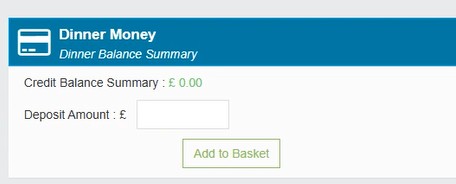
 

Please see the following guide on how parents can add payments via MCAS

How to add dinner payments in MCAS


How useful was this article?

Click on a star to rate it!

Average rating / 5. Vote count:

No votes so far! Be the first to rate this post.

Similar Posts

  • BROMCOM: How can I transfer a Dinner Balance to a Running Balance Club Balance?

    Modules>MCAS.View>View Balances.  Select the student and then click on “Transfer” and enter the transfer details.         How useful was this article? Click on a star to rate it! Submit Rating Average rating / 5. Vote count: No votes so far! Be the first to rate this post.

  • BROMCOM: How to import Year 4 MTC Results CTF

    You will revive a CTF file with the MTC results that you can import into your Bromcom Go to Students from the left hand side menu From the Year group filter select Year 4 From the Selections button click ‘Select All‘. This should then highlight all your required pupils in blue. Once you have all…

  • Bromcom: How do I add a timetable to a new student starter?

    The easiest way to do this is to copy the timetable from another student.  Highlight the student you want to copy from in the Student List and go to Actions>Class Assignment.  Select all of the classes you want to add to the new student and then click on the Copy button.  The next box asks…

  • BROMCOM: KS2 Key Stage Return

    This FAQ is for the users in school who need to carry out the  KS2 TA Key Stage return For more information please see the following DFE guide- Key stage 2 teacher assessment guidance 2025 – GOV.UK To view further guides please see the following Scomis Bulletin- Key Stage Bulletin 2025 – Frequently Asked Questions…

  • Bromcom: Updating Staff Current Job Title

    To update the staff current job title in bulk go to Staff > Selection > Select All and then Actions > Manual Data Export. From here select “Basic Details” and tick “Include empty records where data does not exist” and click Export Open the spreadsheet that has been downloaded and enter all required information. After…

  • Bromcom Finance & DTSApps – DEVON SCHOOLS

    Bromcom Finance: How to process your invoices, in Central Authorisation and “Print & Export” Bromcom Finance: Raising orders on suppliers websites for example: YPO & Amazon Bromcom Finance: How to cancel “Passed for Pay” Invoices Bromcom Finance: I have clicked print and not print and export Bromcom Finance and DTSApps: How to process your invoice…