How to connect a Google Chromebook to a Wireless Network.

To connect your Google Chromebook to a Wi-Fi or Wireless Network.

1: Start up the Chromebook.

2: Click on the Network icon in the lower left hand corner
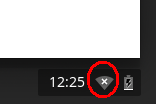
3: If no networks are listed then first check that the Wireless Connection is enabled, then click on the words ‘No Network’.
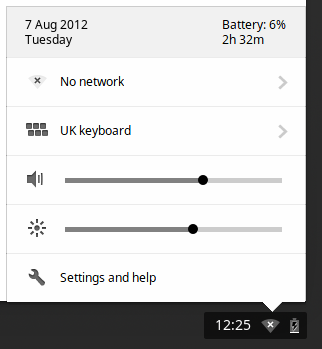
4: This will now display a list of all available and visible Wireless Networks as below.
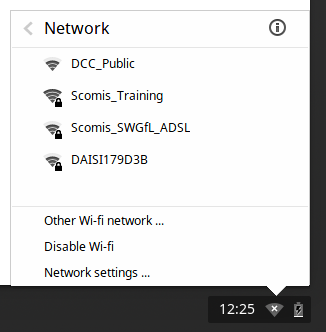
 

5: Select the network you wish to join and click on its name.


If the Network is secured and password protected you will then be prompted to enter the password. Once you have entered the password click on Connect.

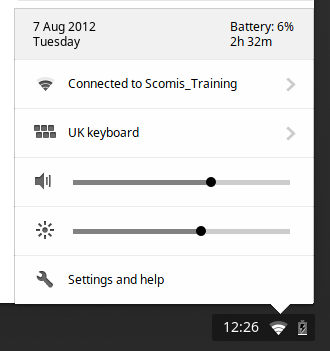
6: You should now be connected to the Wireless network – the Network icon should change to a series of bars indicating signal strength, and the network name will be displayed as below.
 

Reviewed on 08/04/2016


How useful was this article?

Click on a star to rate it!

Average rating / 5. Vote count:

No votes so far! Be the first to rate this post.

Similar Posts

  • Finding your iPad’s MAC Address

    If your the wireless network you are connecting to is a Managed Network, then you will need to provide your Network Administrator with the iPad’s MAC Address. To obtain this first Tap on the Settings Icon… Once in the settings application, you will be in the General Screen as shown below: Tapping on About will…

  • How to get a Google Chromebook’s MAC Address

    Some managed networks require that your wireless device’s MAC Address ( a unique identifying code) be added to a list of devices that have permission to join the network. To obtain the MAC address of your Google Chromebook…  1:  Start the Chromebook up.  2:  Click on the Network Icon in the corner of the screen….

  • My keyboard and /or mouse do not respond…

    Ensure that both devices are plugged securely into the computer – for wireless devices check the wireless receiver is plugged in.
    Try connecting them to different USB ports……

  • Adding SWGfL Proxy Settings to mobile devices (iPad, iPhone, Android)

    Add SWGfL proxy server settings to my iPad or iPhone 1. Navigate to the ‘Settings’ app and tap on ‘WiFi’ 2. Next, tap on the WiFi network you need to add the proxy to. This should be one you are currently connected to. 3. This next page will display all of your network information, for the network you…