BROMCOM: Which report best allows you to see students/families who owe Dinner Money?
Reports>Dinner>Overdrawn Dinner Account
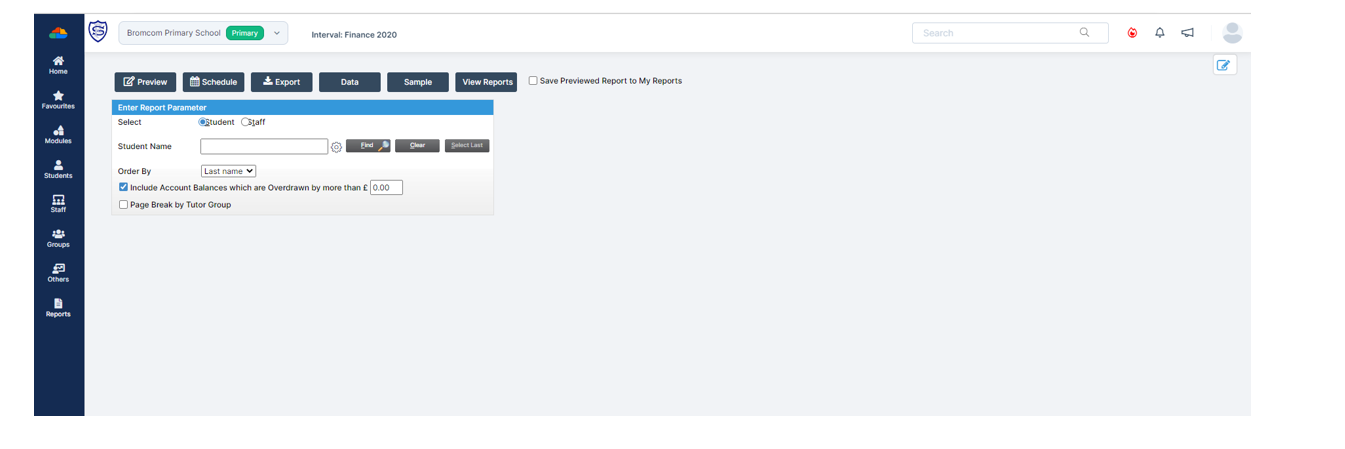
Reports>Dinner>Overdrawn Dinner Account
How useful was this article?
Click on a star to rate it!
Average rating / 5. Vote count:
No votes so far! Be the first to rate this post.
You may be starting to roll out MCAS and have been sending links out to parents. In Bromcom, you can run a report that shows you which students parents have not activated their account. You can run the User Accounts Report under Reports>MCAS>Account Report. Here you will be able to run a report of all…
It’s possible to display details on Clubs, Trips, and Wraparound Care in MyChildAtSchool. In giving parents/guardians access to these areas you’re enabling them to book, and pay for their children to attend these activities. The following KB will details the configuration settings available for these areas. Navigating to the Clubs/Trips Settings Page The Clubs/Trips Settings…
This FAQ lists the latest information regarding the School Workforce Census. It contains links to relevant documentation for Arbor and Bromcom. School Workforce Census Date: Thursday 6th November 2025 School Workforce Census Deadline Date to DfE: Friday 21st November 2025 (If you are a maintained school please consult your LA) Latest Census Information KNOWN ISSUES…
If your staff is missing the “Staff Dinner Balance” widget, please ensure the correct permission has been assigned to their “Teacher” role. To ensure the correct permissions have been assigned, please browse to Config> Setup> Roles and permissions, choose the role e.g Teacher click edit and choose the module in the drop down of “Profile”…
Scomis does not recommend deleting user accounts, and the routine should only be used in cases where the accounts have not been used by a staff member (i.e. duplicate accounts created or the staff member does not start at the school). All account deletion is irreversible. We will highlight the account deletion process at the…
To see who has received push notifications you can use Modules > Communication > Overview to see who push notifications have been sent to: You can use Modules > MyChildAtSchool > Overview to review app installations: Additionally there is an MCAS domain in Quick Reports for the school to…