| |

Bromcom: How to see who has received MCAS push notifications

To see who has received push notifications you can use Modules > Communication > Overview to see who push notifications have been sent to:
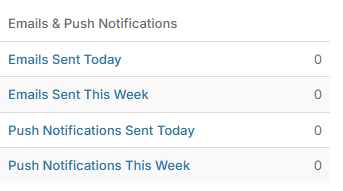


You can use Modules > MyChildAtSchool > Overview to review app installations:



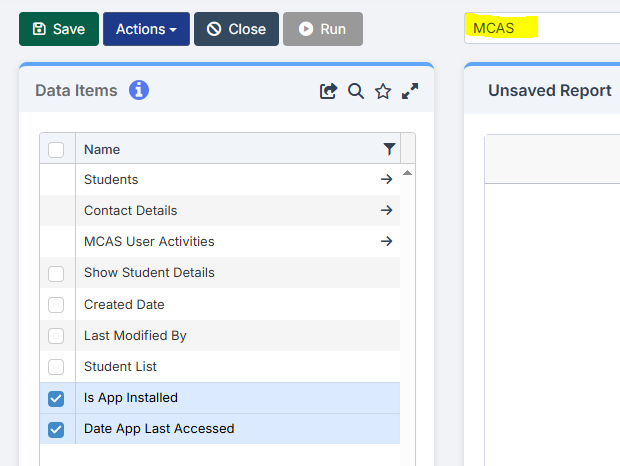
Additionally there is an MCAS domain in Quick Reports for the school to create their own bespoke report on App installations:
How useful was this article?

Click on a star to rate it!

Average rating / 5. Vote count:

No votes so far! Be the first to rate this post.

Similar Posts

  • Bromcom: Parent only seeing one child in MCAS

    You may find that you receive queries from Parents as to why they can only see one of their children in MCAS.  This may be because “Grant access to student details on MCAS” is not ticked” within the contact record. Please go to “Others”, Type: “Contact” and open the contact record.  Within “Linked Students”, double…

  • Bromcom Finance: How do I enter my budget into the new year ?

    Modules> Finance> Homepage>Budgeting> Cost Centre allocation. Top tip: When in Cost centre allocation, you can click “Edit Mode” located top right of screen, which opens all cost centres and ledger codes in one area for you to add your budget allocations. Please also see the following guide:Bromcom Finance guide – How to Enter Budgets  …

  • Bromcom: MCAS User Activity

    You may be starting to roll out MCAS and have been sending links out to parents. In Bromcom, you can run a report that shows you which students parents have not activated their account. You can run the User Accounts Report under Reports>MCAS>Account Report.  Here you will be able to run a report of all…

  • My Monitor won’t turn on at all.

    A quick guide to diagnosing a monitor or display that won’t power on. Check the power switches, cables, and wall socket, then test with known‑working equipment to pinpoint whether the issue lies with the monitor, the computer, or the connection between them.

  • Bromcom: How to enter marks into Key Stage DFE assessment marksheet

    Once you have opened your marksheet- BROMCOM: How to View Marksheets as a Teacher or Admin – Frequently Asked Questions you will need to enter your marks There are three ways to enter marks into Bromcom  You can enter marks by  clicking in each cell and entering the marks 1 by 1 Alternatively if you…

  • DEVON SCHOOLS ONLY – Submitting Claims through iTrent

    The employee is able to do this through self-service and you can then approve the claim once the system is available, or your administrators can input the claim on behalf of the employee via fast input, from a paper form. If you have administrators who are inputting from the paper process, please note the forms…