Bromcom: As admin staff how can I disable the Exams information on the student portal?

As admin staff how can I disable the Exams information on the student portal? 

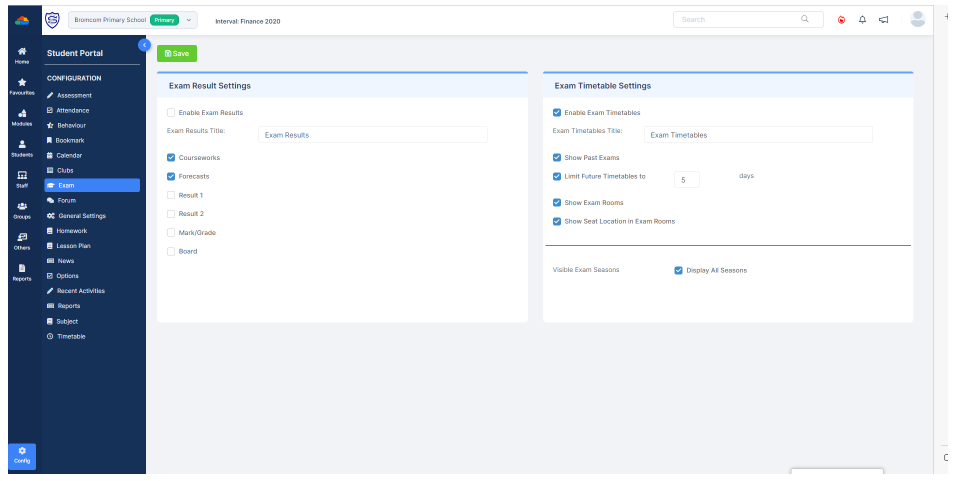
Go to: Config>Student Portal>Exams

Within Exam Result Settings > “Enable Exam Results” untick if you do not want the exam results to show on the student portal.


How useful was this article?

Click on a star to rate it!

Average rating / 5. Vote count:

No votes so far! Be the first to rate this post.

Similar Posts

  • Windows 7 Device and Printer window is blank

    When looking in the Devices and Printers section of the Control Panel (or from the Start Menu) the page takes a long time to load and shows 0 items.

  • How to manually add new equipment to Equipment Register

    Focus > Equipment > Add > Complete the Basic details tab. The system will generate a new Equipment Number (the next available in the system) when you click the Save button, after entering the new equipment details. Click Save How useful was this article? Click on a star to rate it! Submit Rating Average rating…

  • Autumn Post 16 School Census 2025 Guide

    This FAQ lists the latest information regarding the School Census.  For Schools using Bromcom – Click here  to jump to the relevant section. For Schools using Arbor –  Click here  to jump to the relevant section. For all information preparation for the upcoming Census click: Autumn School Census 2025 – Bulletin and Here for the DfE information Complete…

  • Bromcom: How do I add a timetable to a new student starter?

    The easiest way to do this is to copy the timetable from another student.  Highlight the student you want to copy from in the Student List and go to Actions>Class Assignment.  Select all of the classes you want to add to the new student and then click on the Copy button.  The next box asks…

  • Bromcom: How do I add a comment to an attendance mark in the register?

    There may be occasions where you need to add a comment to an attendance mark within the register. To do this you will need to go to Modules > Attendance > Manage Attendance. From here you can select the parameters for the register that you would like view. The register will then load. Click into…