|

BROMCOM: How to add ‘Configurations’ to a Role for Key Stage

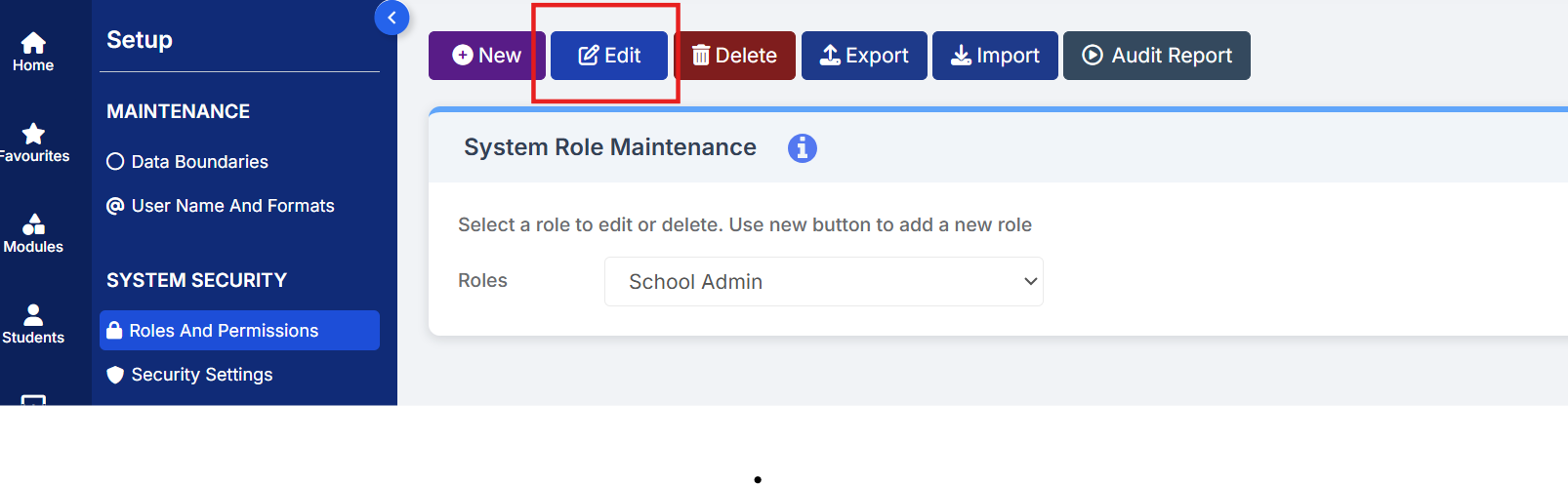
To set the configurations to access the setup of the Key Stage Assessment Marksheets in Bromcom you need to go to Config > Setup > Roles and Permissions.

Select the role of the user carrying out these steps (Teacher/ SchoolAdmin – This will need to be decided in school for who is carrying out the setup of the marksheet) then Edit.


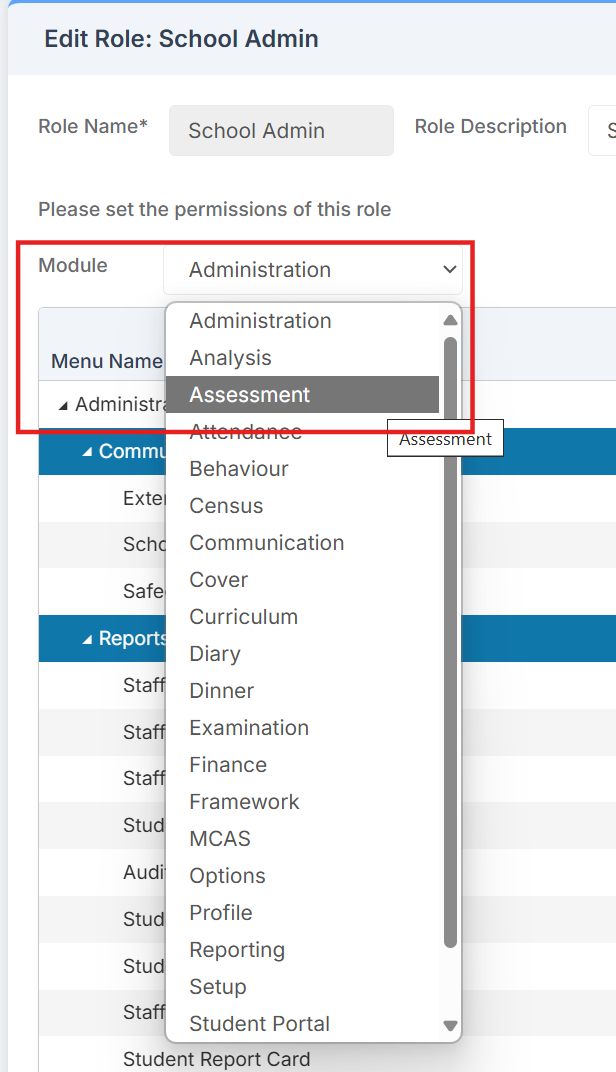
Change the Module to Assessment from the Drop Down
Click Collapse All, Open up Maintenance and put a tick in for Configurations for Actions and Save and then Save these changes at the top of the page.
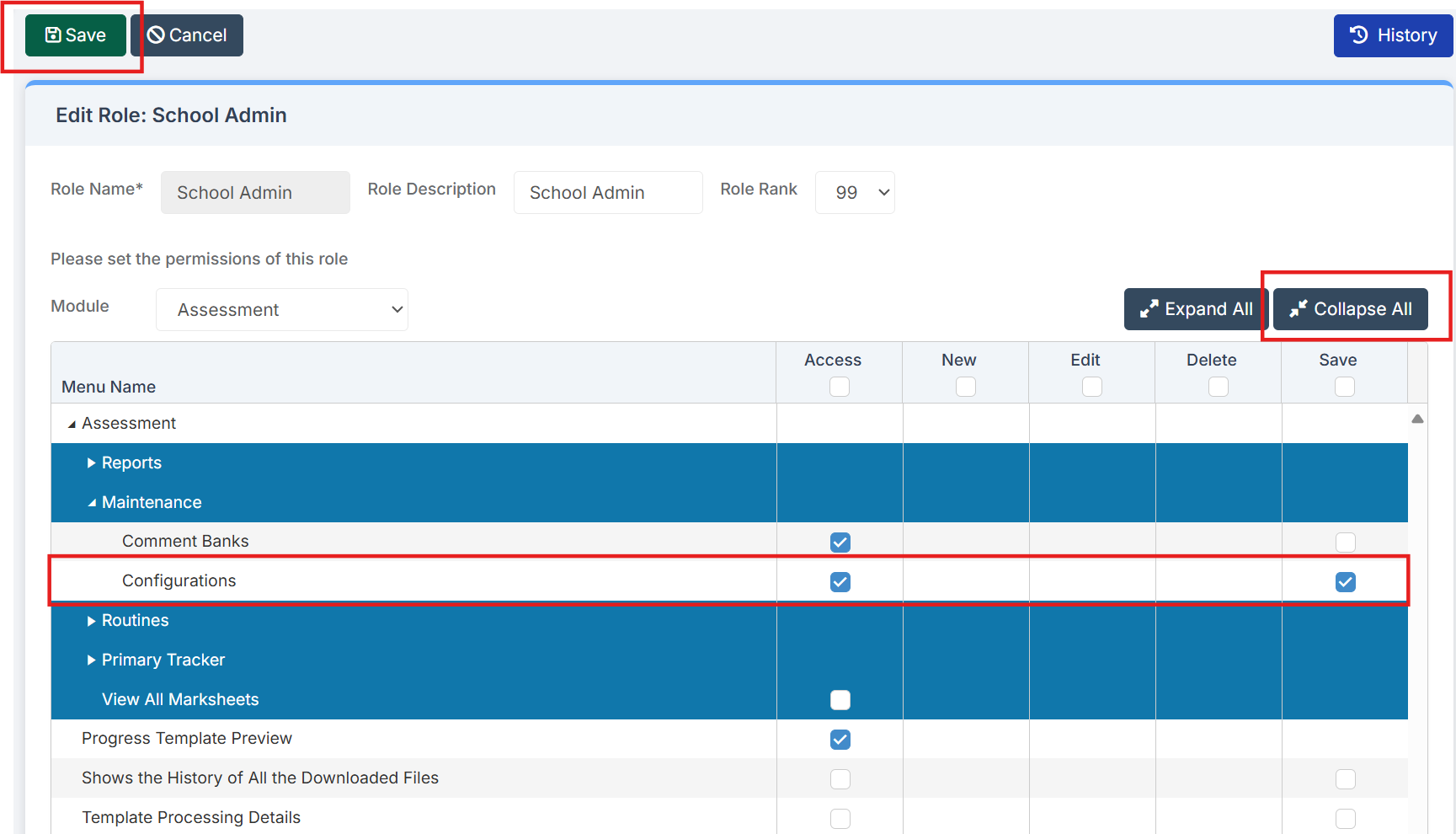
With these permissions, the Key Stage Marksheets can now be setup via Config > Assessment > Configurations.


How useful was this article?

Click on a star to rate it!

Average rating / 5. Vote count:

No votes so far! Be the first to rate this post.

Similar Posts

  • MCAS – Dinney money widget is missing to add payments

    Parents are unable to see the “Dinner money” widget to add payments for their children. Please check the following: Please ensure online payments is enabled via Config> MCAS> Online payments – Please also see How do I enable Bromcom Online payments in MCAS – SCHOOLS – Frequently Asked Questions Ensure the Dinner settings are setup …

  • Bromcom: How do I add a comment to an attendance mark in the register?

    There may be occasions where you need to add a comment to an attendance mark within the register. To do this you will need to go to Modules > Attendance > Manage Attendance. From here you can select the parameters for the register that you would like view. The register will then load. Click into…

  • What’s new on Bromcom Finance

    You can view what is new in Finance by clicking on the megaphone icon as seen below. We will also update this FAQ with the latest changes, new features and improvements each time they are released. Sprint Release 17th October 2025     URL for further information MIS Route Information Finance – Clone Invoices and…

  • Bromcom: Exam Results import errors

    When importing your results files into Bromcom it is possible that you may experience one of two errors. The first error as shown above is “Exam Code not in Candidate entered Exams”. This means that Bromcom cannot find an entry that corresponds with the results Exam Code. To resolve this error move the radio button…

  • Bromcom: Unable to register SSO

    When trying to Register SSO for a user within Modules > Setup > System Users an error may occur stating “Action Needed: Email address has already been registered”. This happens when an SSO User is deleted prior to the user being removed as SSO. Please ask the users to log into the below link and…