|

BROMCOM: How to Add Staff to Edit/View Marksheets

For Key Stage Assessments after you have access via BROMCOM: How to add ‘Configurations’ to a Role for Key Stage – Frequently Asked Questions

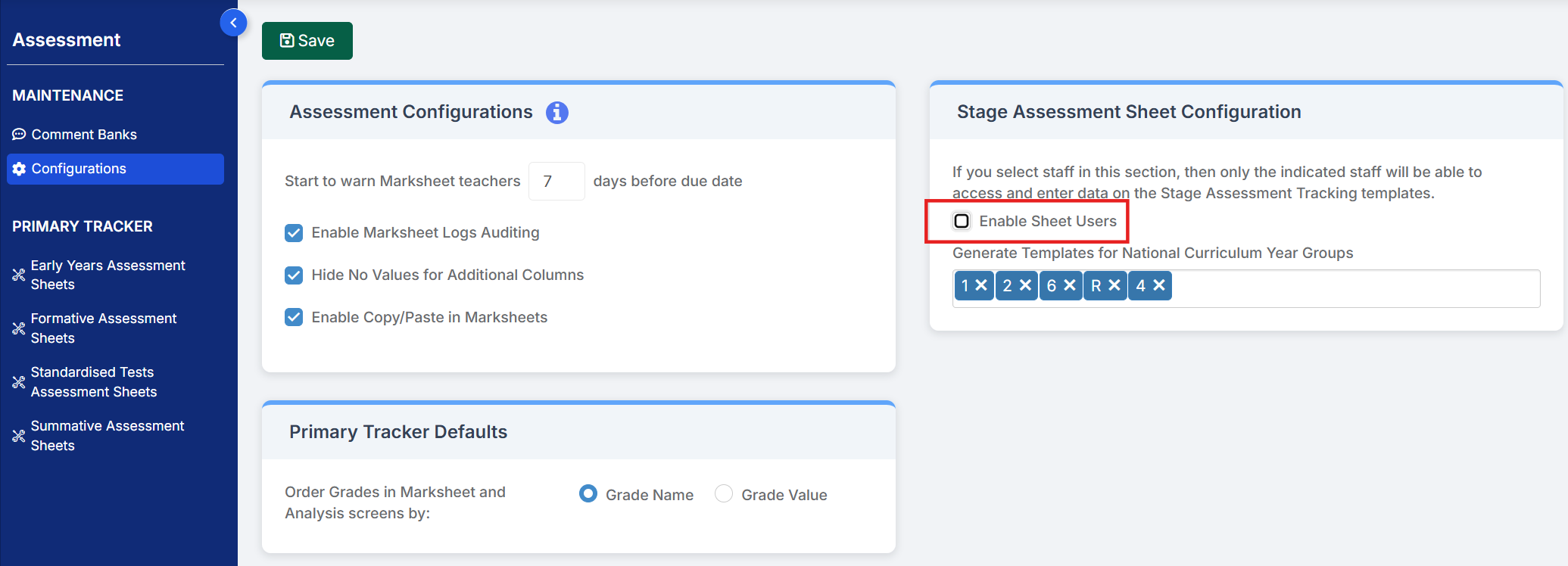
Go to Config > Assessment > Configurations and put the tick in Enable Sheet Users.


You can then tick which Staff Roles will require access to the marksheets (this will need to be decided in school) or use the staff search to individually select the staff to have access. This will need to be any users who need to input or view the data.
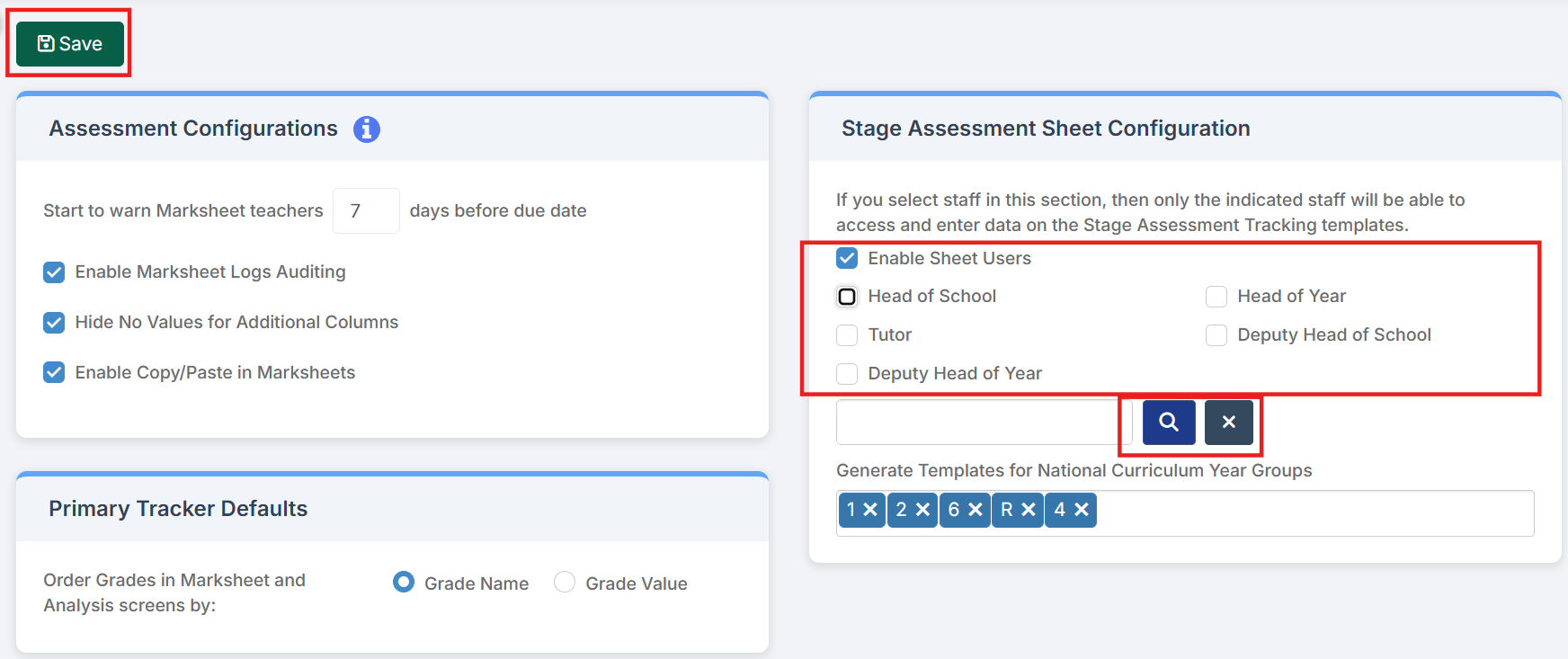
  • Enable Sheet Users – selecting this option will only allow the selected Roles and selected Staff in the Selection List to access and input data in the Stage Assessment Sheets.
  • Select individual users – use the blue magnifying glass to open the Staff selector page and select the members of Staff who are not defined in the Roles who also need access to the Stage Assessment Sheets. Alternatively type the Staff name into the box, if selecting a single member of Staff. The selected Staff will appear in the Selection List

Generate Templates for National Curriculum Year Groups Select all the NC Year groups for Key Stage are from the Drop Down, Reception, Year 1,2,4 and 6.

Then press Save.

This will now set up the marksheets for Key Stage to be viewed by those staff via Modules > Assessment > Assessment Sheets List


How useful was this article?

Click on a star to rate it!

Average rating / 5. Vote count:

No votes so far! Be the first to rate this post.

Similar Posts

  • Bromcom Exams: How do I prepare and print the candidate statements

    Browse to Reports> Examinations>Results> Results by Students Click ” Find” button opposite candidate name Click “Select All” button top right or alternatively click and highlight the required students Click “Preview” This will then show the statement of results by candidate, you can click the top arrow button to view them one student at a time…

  • Bromcom: Exam Results import errors

    When importing your results files into Bromcom it is possible that you may experience one of two errors. The first error as shown above is “Exam Code not in Candidate entered Exams”. This means that Bromcom cannot find an entry that corresponds with the results Exam Code. To resolve this error move the radio button…

  • Bromcom Finance & Budgeting : How do I enter a Variance reason in Budget Variances

    Modules> Finance> Homepage> Budgeting> Budget Variances In the budget variances you can add a budget variance reason against e.g a Cost centre as shown in this example below: Note: Any Variance reason needs to be added before you sort your columns – see sorting columns FAQ – Bromcom Finance & Budgets: How do I sort…

  • Bromcom: Blank screen in MCAS

    Issue: A parent is logging into MCAS but is being greeted with a blank screen. Resolution: This is likely to be caused by the contact having 2 records within Bromcom. Go to Others > Contact and search for the contacts name Double click on one of the duplicated contact records and remove the student from…