|

Bromcom: How to view Year 2’s Phonics results from when they were in Year 1

If you need to view your current Year 2’s Phonics results from the previous year, you can do so using a report.

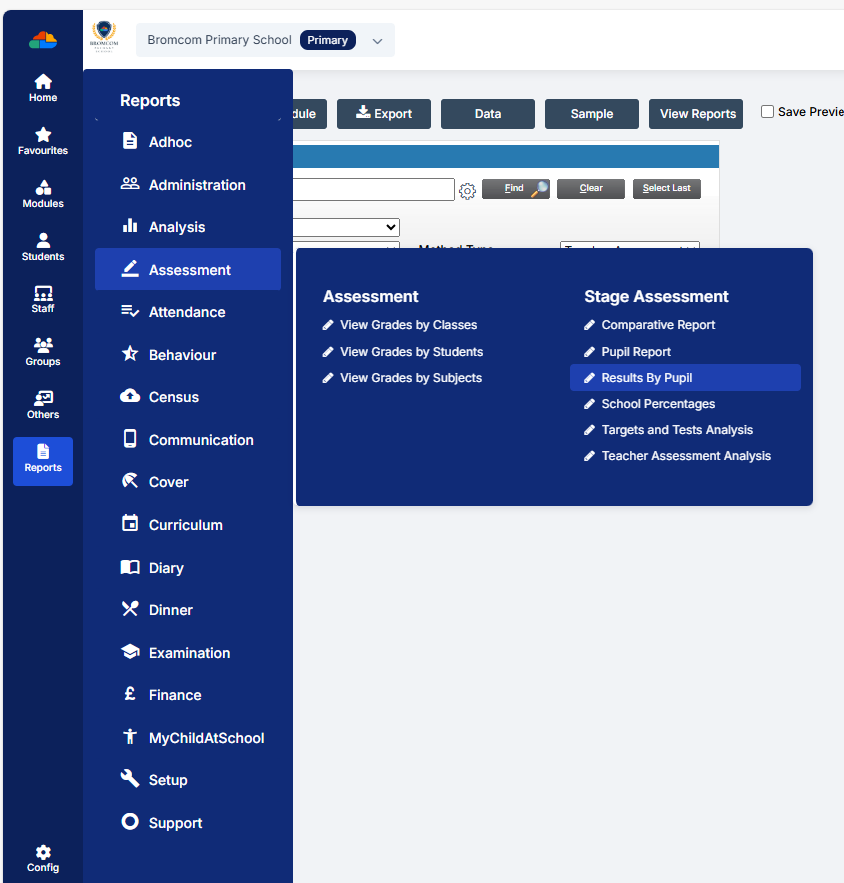
Go to Reports on the left hand side menu, then Assessment and then Results by Pupil
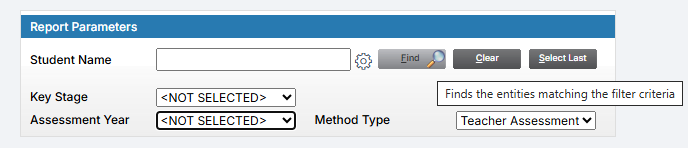
Use the find button to select all of your current Year 2 pupils
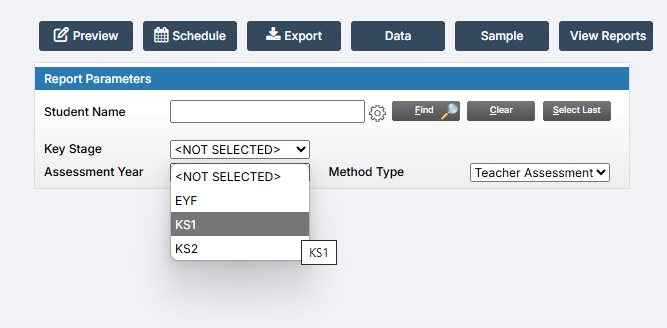
Now select KS1 from the Key Stage drop down
Then choose the assessment year
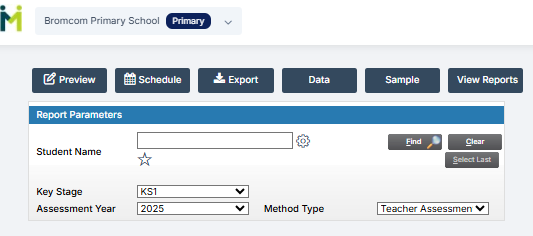
Now you can either preview or export the report as needed, and it should show you the results of the Year 1 Phonics assessment for your current Year 2 pupils.


How useful was this article?

Click on a star to rate it!

Average rating / 5. Vote count:

No votes so far! Be the first to rate this post.

Similar Posts

  • Bromcom Finance: How to cancel “Passed for Pay” Invoices

    There are a couple of reasons you might need to cancel your raised “Passed for Pay” Invoices: If you have lost your “Print and export” text file that is required for processing through DTSApps, you will need to cancel your invoices and re-raise them.  If you have raised an invoice and now no longer require…

  • Bromcom: Asking for “PIN” when deleting a student record

    You may be trying to delete a pupil and are being asked for your PIN? How do you find out what your user PIN is? Request for a PIN usually means you’re an SSO user logging in with O365 or Google, and you were prompted to set your PIN number the first time you logged…

  • Autumn School Census 2025 – Bulletin

    This FAQ lists the latest information regarding the School Census.  For Schools wanting the latest documentation for Census and using Bromcom – Click here  to jump to the relevant section. For Schools wanting the latest documentation for Census and using Arbor –  Click here  to jump to the relevant section. For Schools wanting the latest documentation for…

  • ARBOR – Quick Summary Guide – Pre-checks and Generating School Census

    This FAQ is a quick check list for updating information before Census.  For Schools wanting the latest documentation for Census and using Arbor – Click here  to jump to the relevant section. Thursday 15th January 2026 is census day Spring Census Dry Run opens 2 weeks before Census Day 11th of February 2026 is your census submission…

  • Bromcom Exams: How do I prepare and print the candidate statements

    Browse to Reports> Examinations>Results> Results by Students Click ” Find” button opposite candidate name Click “Select All” button top right or alternatively click and highlight the required students Click “Preview” This will then show the statement of results by candidate, you can click the top arrow button to view them one student at a time…