Bromcom: How to enter marks into Key Stage DFE assessment marksheet

Once you have opened your marksheet- BROMCOM: How to View Marksheets as a Teacher or Admin – Frequently Asked Questions you will need to enter your marks

There are three ways to enter marks into Bromcom 

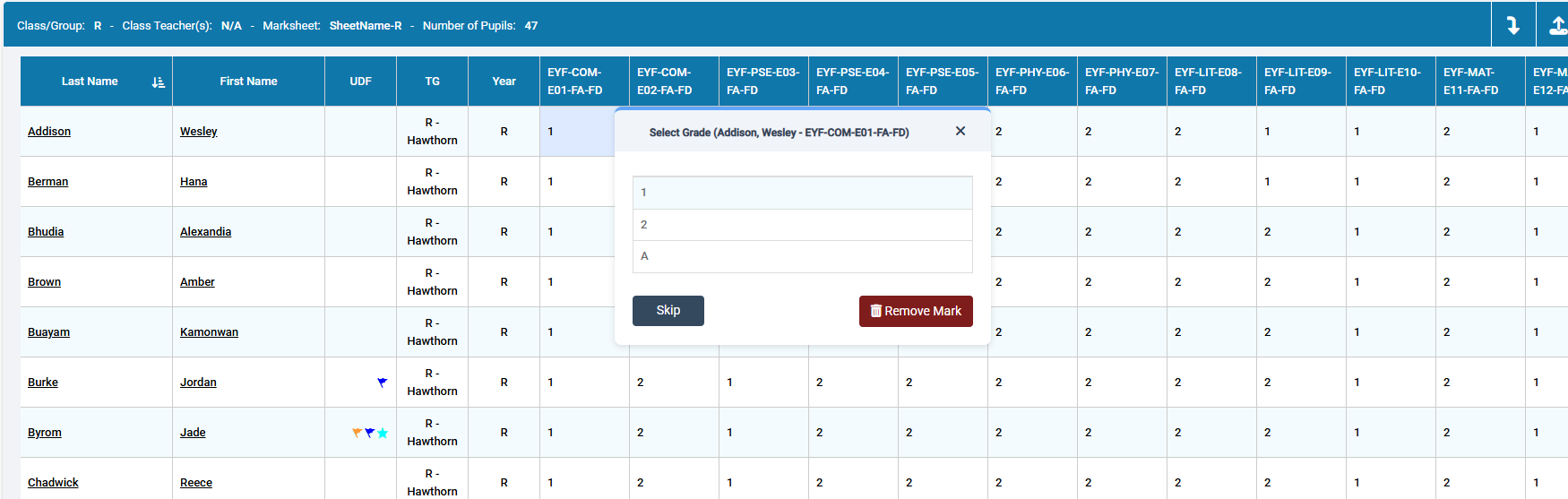
You can enter marks by  clicking in each cell and entering the marks 1 by 1
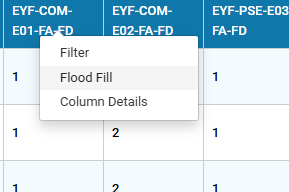
Alternatively if you have a number of pupils with the same mark you can right click on the column heading and “Flood fill”
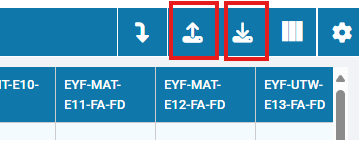
Lastly you can export the marksheet to Excel

Click on the first button shown below to download the Excel marksheet.
Open the marksheet from your Downloads folder

Fill in the marks in Excel

Save the Excel document

Go back into Bromcom and click the second button shown above and locate your saved Excel file and Import.


Once you have entered in all your marks you should be ready to send your CTF’s – BROMCOM: How to create a Key Stage DFE assessment CTF – Frequently Asked Questions

How useful was this article?

Click on a star to rate it!

Average rating / 5. Vote count:

No votes so far! Be the first to rate this post.

Similar Posts

  • BROMCOM: Key Stage reports

    There are a number of reports that can be run for Key Stage. These can be used for analysis or to send to Parents/Guardians You can find all of these reports from Reports>Assessment>Stage Assessment Comparative Report– This report can be used to analyse Test Scores and Outcomes in Percentages to compare against National Figures Pupil…

  • Bromcom: How to view Year 2’s Phonics results from when they were in Year 1

    If you need to view your current Year 2’s Phonics results from the previous year, you can do so using a report. Go to Reports on the left hand side menu, then Assessment and then Results by Pupil Use the find button to select all of your current Year 2 pupils Now select KS1 from…

  • Bromcom: How to show just statutory columns in a Key Stage Assessment marksheet

    If you want your Key Stage marksheet to show only the statutory marks, you can filter this in some marksheets. Go to Modules>Assessment>Assessment Sheets List Browse to your chosen Key Stage marksheet, in this example we’ve chosen the Year 1 Phonics marksheet KS1-2025-01 In the top right of this marksheet click on the cog icon…

  • BROMCOM: Devon County Council- Key Stage Upload dates

    The following dates have been provided by the Devon Data and Assessment Team. For further information please contact below Tel: 01392 287317 Email: Schooldataassessment@devon.gov.uk Your Key Stage CTF’s must be uploaded via Devon Transfer by the following dates. EYFS Deadline – 30th June 2025 Phonics- 23rd June 2025 (Please include Year 1 and Year 2…

  • Bromcom: How to create a Phonics CTF for Year 1 and Year 2

    Please check with your LA for CTF requirements. If you are a Devon school- Upload to Devon Transfer (Please note: For Devon this is a combined CTF with all Year 1’s and Year 2 retake pupils in ONE CTF. ONLY INCLUDE YEAR 2’S WHO HAVE RETAKEN PHONICS THIS YEAR) To create a CTF that includes…

  • BROMCOM: How to Add Staff to Edit/View Marksheets

    For Key Stage Assessments after you have access via BROMCOM: How to add ‘Configurations’ to a Role for Key Stage – Frequently Asked Questions Go to Config > Assessment > Configurations and put the tick in Enable Sheet Users.         You can then tick which Staff Roles will require access to the marksheets…