Bromcom Staff Data Collection Report

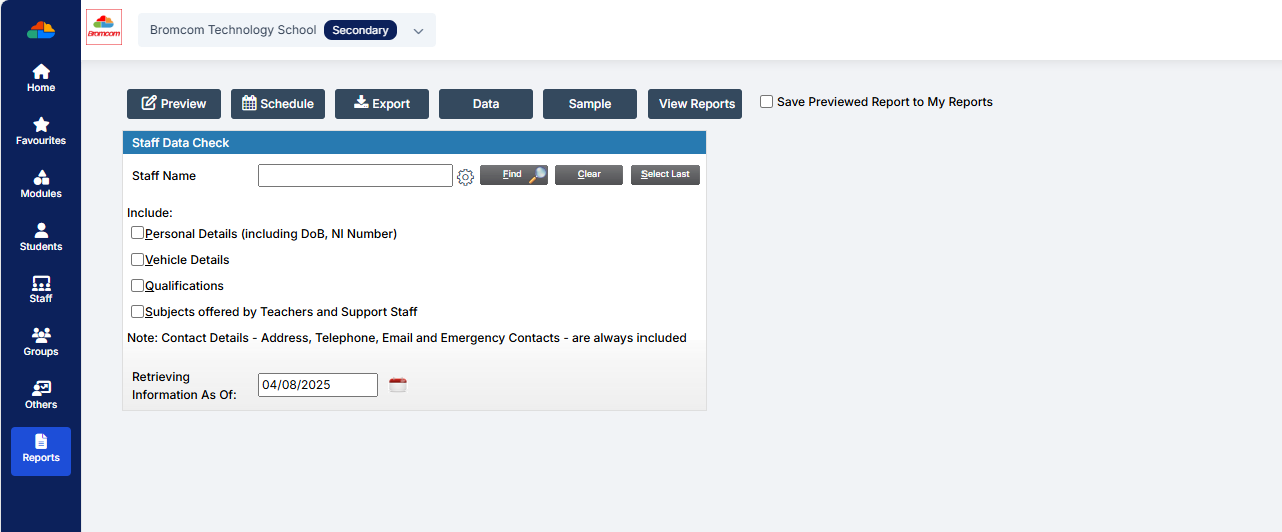
This report can be found via Reports – Administration – Staff data check report. You can export, print, and hand-out to teachers to check.  Alternatively you could create a quick report with the information you want to check, include staff email, and then mailmerge it to staff.

Also, staff should (permissions allowing) be able to update their own data via their Profile in Bromcom How To Use My Profile As A Staff Member – Bromcom – Documentation Centre
How useful was this article?

Click on a star to rate it!

Average rating / 5. Vote count:

No votes so far! Be the first to rate this post.

Similar Posts

  • Bromcom: Bulk Update Class Memberships

    To bulk update class memberships go to Modules > Curriculum > Bulk Group Assignment The drop-down menu allows you to choose Class, Tutor Group, Band and Block In this example I am setting the Art students in Year 8 Next to the Group Name click the Magnifying glass and choose the required classes. Click Done….

  • Bromcom: Unable to change staff absence end times

    Staff List Page>Choose Staff>Actions>Add Absence (and creating absence via Staff Profile page) How to Record Staff Absence – Bromcom – Documentation Centre You may find, when entering a Staff Absence, whether you select specific time (eg half day, 3/4 day) the time changes to a default time. In order to rectify this, you need to…

  • Scomis Self Service Portal – An Introduction to

    What is Scomis Self Service Portal? Scomis Self Service Portal is a Web-based application, which allows you to access your organisation’s IT support and services, at any time of the day. You can log onto Scomis Self Service Portal using your web browser, using the address https://selfserve.scomis.org/ You can use Scomis Self Service Portal to request…

  • How do I delete equipment in Equipment Register?

    Follow the below to remove equipment from Equipment Register. Focus > Equipment > Highlight the item > Click View/Edit. To delete the Item click the – icon on the focus bar and enter the reason for deletion. Click Save. How useful was this article? Click on a star to rate it! Submit Rating Average rating…