|

Bromcom: Why can’t I add a new room to Exams?

In order for a room to appear within Exams it must first be added in Config > Administration > Rooms
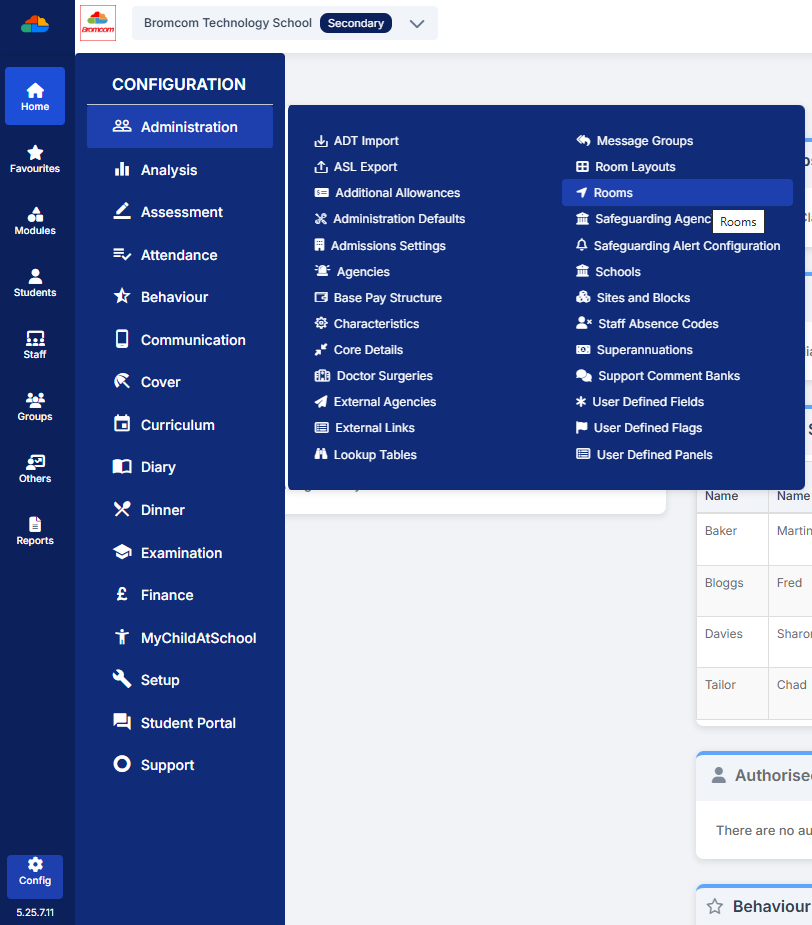
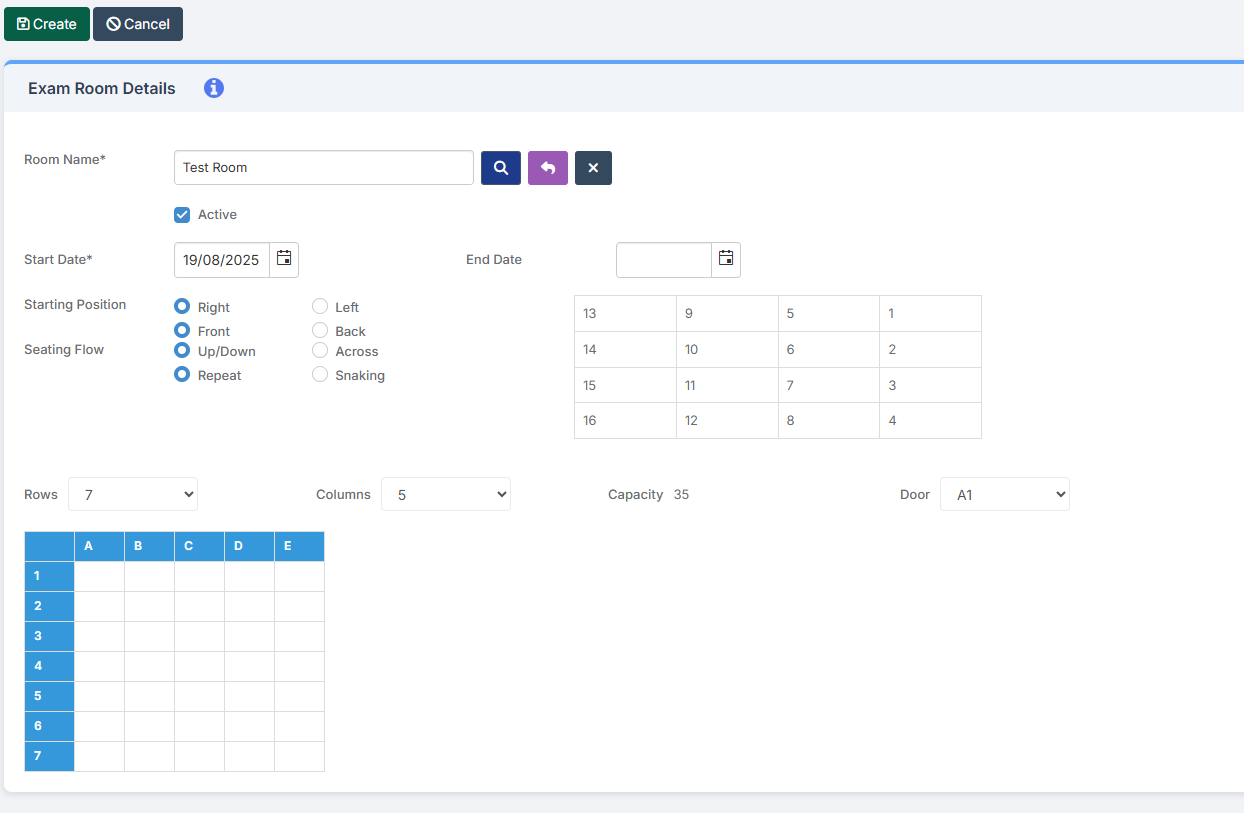
Once it has been added here you will then need to go to Config > Examination > Exam Rooms and click New.

You will then need to click on the magnifying glass icon which will display a list of all rooms that have been added in Config > Administration > Rooms. Once you have picked up your room you will then be able to setup the room as you wish for Exams purposes.
 

How useful was this article?

Click on a star to rate it!

Average rating / 5. Vote count:

No votes so far! Be the first to rate this post.

Similar Posts

  • Disabling UAC in Windows

    The UAC – or User Access Control – is a feature of Windows7 & Vista to help protect you against Malware.

  • Bromcom: Blank screen in MCAS

    Issue: A parent is logging into MCAS but is being greeted with a blank screen. Resolution: This is likely to be caused by the contact having 2 records within Bromcom. Go to Others > Contact and search for the contacts name Double click on one of the duplicated contact records and remove the student from…

  • End of Year Procedures 2025

    This FAQ lists the latest information regarding the End of Year procedures within Arbor and Bromcom. It contains all guidance notes required to carry out end of year procedures in your school. You must complete these procedures before the start of the new academic year.  Scomis is delivering Bromcom End of Year training on the…

  • Bromcom Finance: How to process your invoices, in Central Authorisation and “Print & Export”

    Once you have added your invoices into Bromcom finance, you will need to authorise and batch up any invoices and credit notes created as follows : In Bromcom, navigate to Bromcom Finance Home page: 1) Click on Central Authorisation in the Routines area: 2) You will see any invoices and Credit notes that have been…

  • BROMCOM: Where would I go to unconfirm dinner numbers?

    To unconfirm dinner numbers, go to ; Modules>Dinner>Reset Dinner Numbers   How useful was this article? Click on a star to rate it! Submit Rating Average rating / 5. Vote count: No votes so far! Be the first to rate this post.