|

Bromcom Finance & Budgets: How can I export my Budget Variance Report?

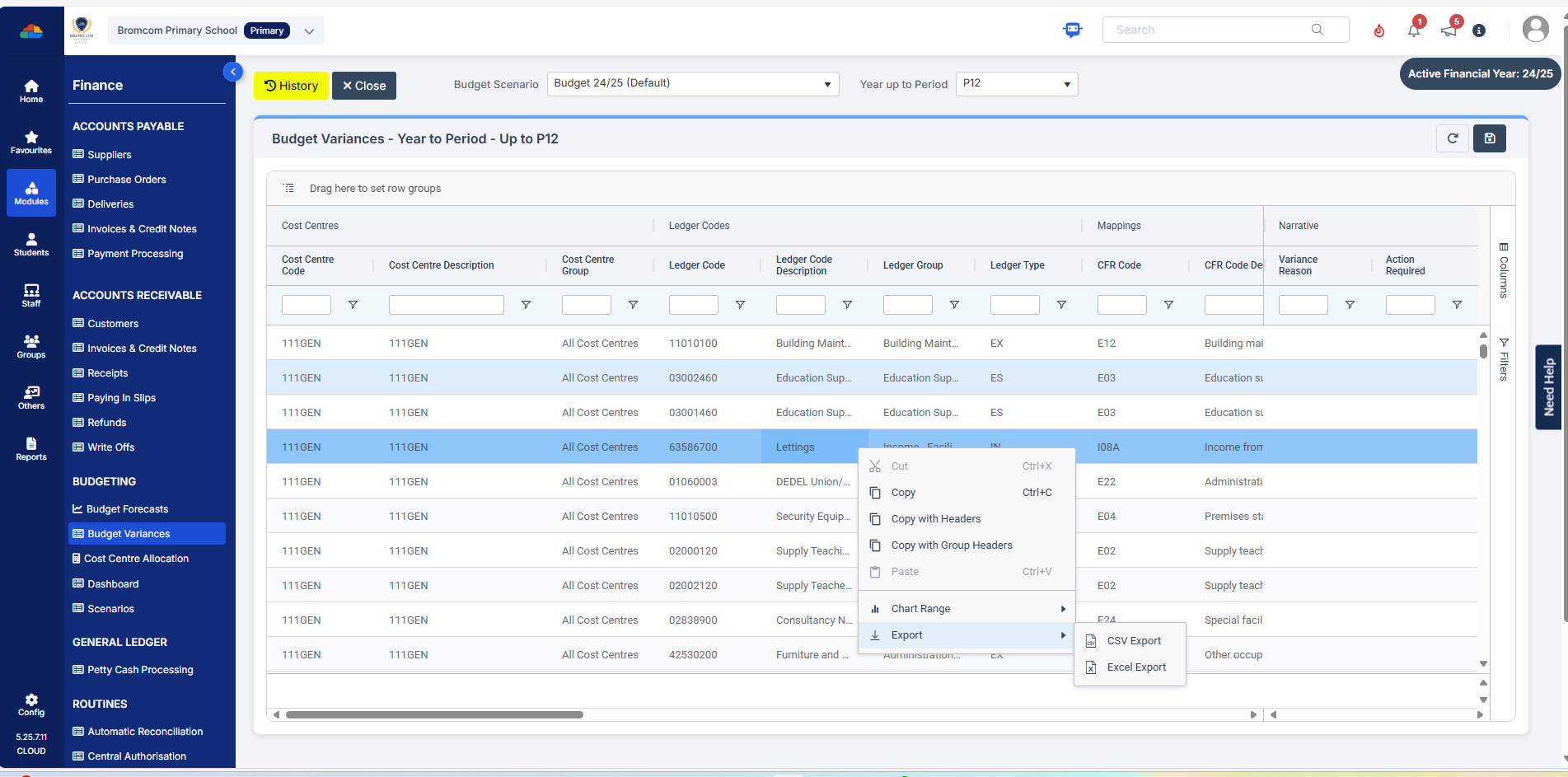
Modules> Finance> Budgeting> Budget Variances

You can export your budget variances report by clicking into any of the budget lines and then right click, select “Export” to CSV or Excel, as shown in the below screen shot:


How useful was this article?

Click on a star to rate it!

Average rating / 5. Vote count:

No votes so far! Be the first to rate this post.

Similar Posts

  • Bromcom Finance: Why can’t I post my Petty Cash?

    My petty cash saves but does not post and has a “No” in the posting column. This is likely to be due to your Petty Cash book running our of folio numbers. Go to Modules> Finance>Homepage> Maintenance> Books. Ensure you have enough folio numbers for each line of expenditure record. If not, you will need…

  • Bromcom Finance: Base Pay mapping FAQs

    Please see this guide for commonly asked questions around “Base Pay Mapping” If you need assistance with setting up mapping please see the following FAQ How to add Base Pay Mapping Scenario 1 – I have staff with the role of “Teaching assistants ” that need to be mapped to multiple cost centres In Bromcom…

  • Bromcom Finance: How to cancel “Passed for Pay” Invoices

    There are a couple of reasons you might need to cancel your raised “Passed for Pay” Invoices: If you have lost your “Print and export” text file that is required for processing through DTSApps, you will need to cancel your invoices and re-raise them.  If you have raised an invoice and now no longer require…

  • What’s new on Bromcom Finance

    You can view what is new in Finance by clicking on the megaphone icon as seen below. We will also update this FAQ with the latest changes, new features and improvements each time they are released. Sprint Release 12th December 2025     URL for further information MIS Route Information Finance – Clone Invoices and…

  • Bromcom Finance: I have clicked print and not print and export

    When processing your payments file in central processing for county, you need to click “Print & Export” only. This is because it produces two files a text file and PDF file.  You will need the text file to process through DTSAPPS. If you have clicked print, this will produce a PDF file in central authorisation…

  • Bromcom Finance and DTSApps – Download and Reformat process PLYMOUTH SCHOOLS

    This FAQ is for Plymouth Schools and explains how to reformat your reconciliation file downloaded from DfE S2S to ensure it can be imported into Bromcom Finance. Download your relevant reconciliation files from DfE School to School Unzip your file using 7 zip and your Plymouth credentials (Please ensure that the file size is above…