Downloading, Installing and Configuring FileZilla

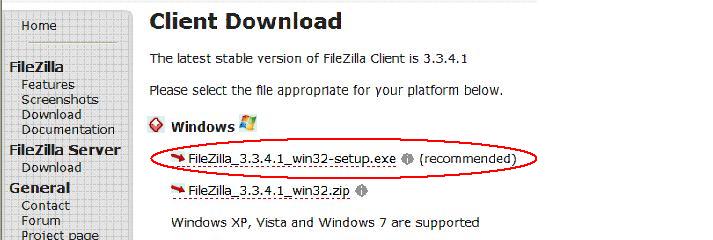
To download FileZilla –

Go to: http://filezilla-project.org/download.php

Choose the first option to download then click Save file.
To install FileZilla:

Run the setup program, and follow the onscreen instructions. The default installation path should be used unless otherwise required.

Configuring FileZilla:

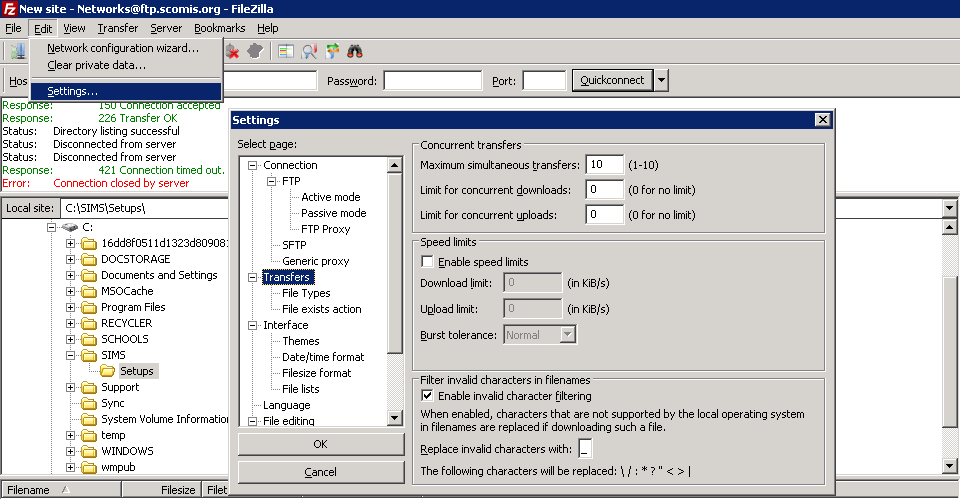
Unless you have personally changed the settings, FileZilla will be set up to download a maximum of two files at a time. You may wish to change this. If you do, you need to click on ‘Edit’ in the FileZilla toolbar and choose ‘Options’. from here, select ‘Transfers’: You should now be faced with several settings , including a field named ‘Maximum simultaneous transfers’. Click the value to the right and change it to ’10’. then click OK. This process is demonstrated below.
kb2818


Last Reviewed: 17/02/2015


How useful was this article?

Click on a star to rate it!

Average rating / 5. Vote count:

No votes so far! Be the first to rate this post.

Similar Posts

  • Bromcom Finance: How do I process Non-Invoiced Income

    You have two options on how you record Non-Invoiced income as follows: Navigate to Modules > Finance > Accounts Receivable (Note: you will need to setup a receipt book and paying in book if not already done so for accounts receivable via Modules> Finance> Maintenance > Books) To record a receipt, click the “non-inv receipt”…

  • DEVON SCHOOLS ONLY – Submitting Claims through iTrent

    The employee is able to do this through self-service and you can then approve the claim once the system is available, or your administrators can input the claim on behalf of the employee via fast input, from a paper form. If you have administrators who are inputting from the paper process, please note the forms…

  • Autumn School Census 2025 – Bulletin

    This FAQ lists the latest information regarding the School Census.  For Schools wanting the latest documentation for Census and using Bromcom – Click here  to jump to the relevant section. For Schools wanting the latest documentation for Census and using Arbor –  Click here  to jump to the relevant section. For Schools wanting the latest documentation for…

  • Bromcom Finance: How to process your invoices, in Central Authorisation and “Print & Export”

    Once you have added your invoices into Bromcom finance, you will need to authorise and batch up any invoices and credit notes created as follows : In Bromcom, navigate to Bromcom Finance Home page: 1) Click on Central Authorisation in the Routines area: 2) You will see any invoices and Credit notes that have been…