Create a Shortcut to a File or Folder You Use Regularly

If you frequently open the same file or folder, creating a desktop shortcut can save you time. Windows lets you do this in just a few clicks.

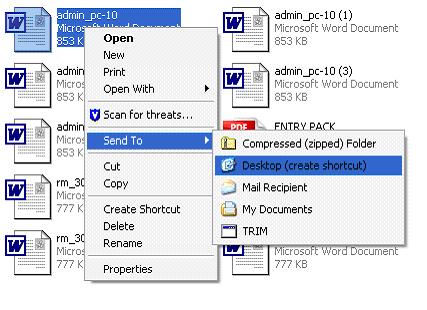
How to create a shortcut

  1. Locate the file or folder you want quick access to.
  2. Right‑click it to open the context menu.
  3. Select Send toDesktop (create shortcut).
  4. Windows will place a shortcut on your desktop with the same name as the original item.

You can now double‑click the shortcut whenever you need to open that file or folder
Optional: Rename or move the shortcut

  • Rename it: Right‑click the shortcut → Rename → type a new name.
  • Move it: Drag the shortcut to another location, such as a different folder or the taskbar (if supported).


Reviewed 12/01/2026

How useful was this article?

Click on a star to rate it!

Average rating / 5. Vote count:

No votes so far! Be the first to rate this post.

Similar Posts

  • Essential Windows Keyboard Shortcuts

    Windows includes a wide range of keyboard shortcuts that help you work faster and navigate the system more efficiently. The shortcuts in this post cover the most commonly used features across modern versions of Windows.

  • How to securely clean a Hard Drive using Data Wipe disk

    USE THIS AT YOUR OWN RISK – DATA WILL NOT BE RECOVERABLE AFTER FOLLOWING THIS FAQ.   If you need to securely remove all data from a computers hard drive before reusing or disposing you can use the DataWipe CD-ROM.   Download the zipped ISO DataWipe for burning to disk Or The latest version can be…

  • Trellix Anti Virus – Product Download

    Trellix AV Bundle Download –  Standalone Installable Release (Password Protected, please contact the Scomis Service Desk) This zip file contains the compressed files for Trellix Endpoint Security Standalone Install (ENS) Please read the documentation here : Trellix Agent 5.7 Installation Guide How useful was this article? Click on a star to rate it! Submit Rating…