How to configure your Google Chromebook to use a Proxy Server

Some networks require you to use a proxy server to access the Internet. A proxy server is another computer or device that acts as an intermediary between you and the Internet by relaying your requests to a server and the servers responses back to you. Unfortunately, this type of setup requires you to specify certain settings in order for you to use the Internet properly. This section will provide information on how to configure your Chromebook to use a proxy server

1: Start up your Google Chromebook.

2: Click on the Network icon in the corner of your screen.
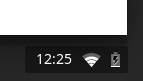
 3: Then select and click on Settings
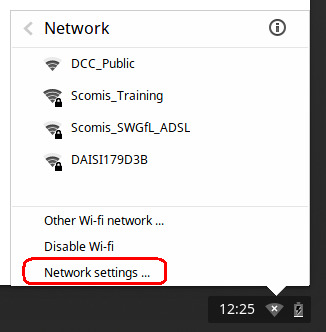
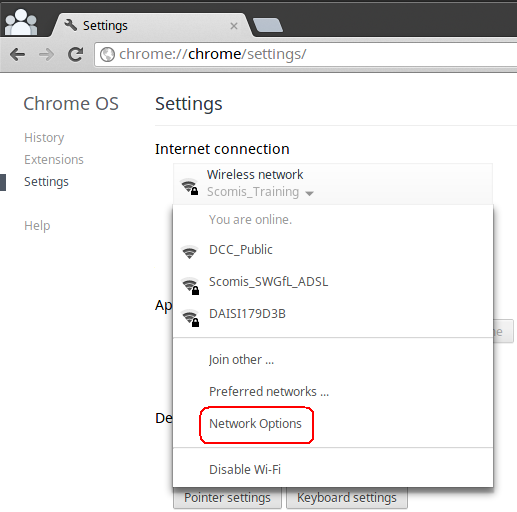
4: Select your network and from the drop down list select Network Options
5: Click on the Proxy tab, and change the settings from Direct Internet Connection to Manual proxy configuration.
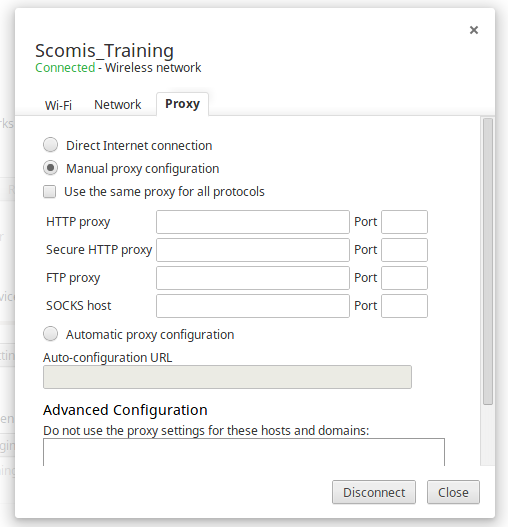
6: Add the name and port number of your Internet Proxy Server and close the form.

7: Alternatively if you have a configuration URL that contains your proxy settings, then simply select Automatic configuration on the above screen and enter the URL, then close the form.

You should now be able to access the internet.


Reviewed on 08/04/2016

How useful was this article?

Click on a star to rate it!

Average rating / 5. Vote count:

No votes so far! Be the first to rate this post.

Similar Posts

  • How to remove a machine proxy

    Besides a user proxy which may be accessed via Internet Explorer>Tools>Internet Options there may be a proxy set on the machine itself. To find out open a command prompt and type:- netsh winhttp show proxy This usually comes back with Direct access <no proxy server> If, however, there is a proxy listed it can be removed by…

  • Top 15 Windows 8 Shortcut Keys.

    Top 15 Windows 8 Shortcut Keys. With the changes made to Windows with the introduction of Windows8 and the new Metro tile interface some important items are no longer accessible in the same way as before. Below is a list of Windows8 shortcut keys that will allow users to find the most common features, information…

  • Connecting your Android Device to Wi-Fi

    There are a wide range of devices running the Android Operating System, with sizes ranging from smart phones to Smart pads, and produced by a range of diffrent manafacturers. Most of the devices have versions of Android that differ to some degree from each other. Actual displays may differ somewhat from the examples below, but…

  • Suggested Google Chrome GPO ADM Settings – (AMEND AS APPROPRIATE)

    The following setting are just a suggestion on how to configure the Google Chrome Group Policy for User Configuration This is based on the ADM file as of 2nd February 2014 – a more up to date ADM may differ. Browse to User Configuration – Administrative Templates right click and select Add/Remove Templates…Import the Chrome…

  • How to get a Google Chromebook’s MAC Address

    Some managed networks require that your wireless device’s MAC Address ( a unique identifying code) be added to a list of devices that have permission to join the network. To obtain the MAC address of your Google Chromebook…  1:  Start the Chromebook up.  2:  Click on the Network Icon in the corner of the screen….

  • Hosted Applications – Can’t connect to the remote computer using the specified forward proxy configuration

    When connecting to the Scomis Hosted Applications service, if you receive the following error: “Can’t connect to the remote computer using the specified forward proxy configuration” Check to see if you can access the internet and one of the following websites in Internet Explorer (not Chrome) : https://gw.scomis.org https://gw-eclipse.rdp.scomis.org https://gw-swgfl.rdp.scomis.org Check that the proxy in…