| |

How to get a Google Chromebook’s MAC Address

Some managed networks require that your wireless device’s MAC Address ( a unique identifying code) be added to a list of devices that have permission to join the network.

To obtain the MAC address of your Google Chromebook…

 1:  Start the Chromebook up.

 2:  Click on the Network Icon in the corner of the screen.
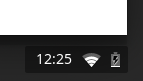
 

3:  Click on the name of the network you are connected to.
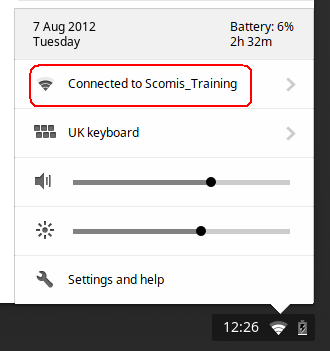
4: Then, click on the  Information icon to display the MAC Address as below:
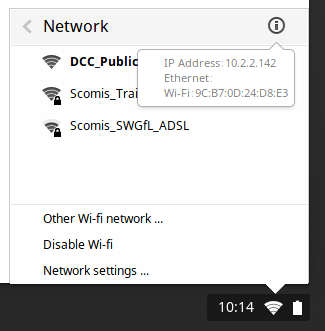
5: Please provide your system Administrator with this number before you connect to the Managed network for the first time.

Reviewed 17/08/2015


How useful was this article?

Click on a star to rate it!

Average rating / 5. Vote count:

No votes so far! Be the first to rate this post.

Similar Posts

  • Setting up Outlook for RM Easymail users

    If a school uses the South West Grid for Learning / RM for their email provider (RM Easymail) then it is possible to link these accounts with Microsoft Outlook. For the different versions of Microsoft Outlook please view the following connection settings and instructions on how to set this up: Microsoft Outlook 2013 Open Microsoft Outlook, click the File…

  • Scomis / Redstor Backup Installation Files

    Click on the links below to download the relevant MSI or other files required for your installation.   Redstor Pro ESE Client Software. Click the title to download the Redstor software for Windows 7 Desktop and above, Windows Server 2008 and above. Click on the latest version link and the select the correct O/S version…

  • LogMeIn Resolve – Requirements

    Remote access offers enhanced customer satisfaction, greater efficiency with regards to resolving your issues on first contact and providing our highest level of support when investigating problems. System Requirements for End users These hardware, operating system, and browser requirements apply to your end users’ computers. Recommendations for network configurations are made to ensure a smooth…

  • Adding SWGfL Proxy Settings to mobile devices (iPad, iPhone, Android)

    Add SWGfL proxy server settings to my iPad or iPhone 1. Navigate to the ‘Settings’ app and tap on ‘WiFi’ 2. Next, tap on the WiFi network you need to add the proxy to. This should be one you are currently connected to. 3. This next page will display all of your network information, for the network you…