Bromcom Finance: Configuring Bromcom to send purchase orders by email

Prerequisites – Please ensure you have configured email for the Bromcom MIS system as per instructions in the following guide. Sending emails from your school email address in Bromcom – Frequently Asked Questions

To enable Bromcom Finance module to send emails for BACS and purchase orders, you need to complete the following steps:

  1. Browse to Modules > Finance > Maintenance > Purchase Order Definition
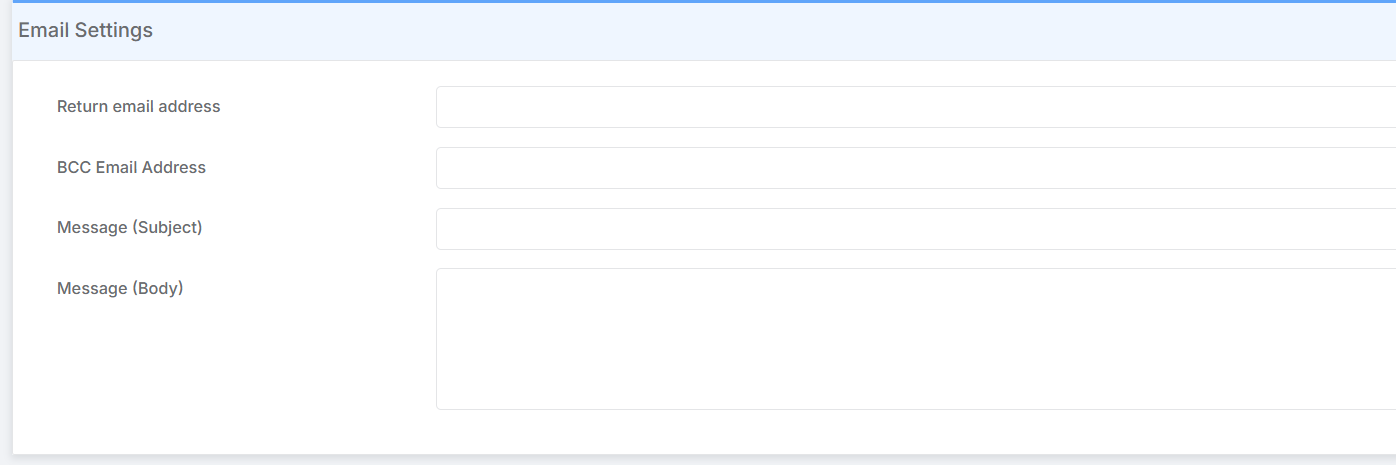
  2. Scroll to the bottom of the page to find the Email Settings section
  3. Enter in your details as follows:
    • Return Email Address – The email address that will receive the replies from the supplier
    • BCC email address – If you wish to receive a copy of the sent emails you can enter it here
    • Message subject – the subject of your emails which is customisable ‘Purchase order from’ etc.
    • Message body – the body of the emails you send, customisable.
4. When you are satisfied with the entered information, scroll to the top of the page and click the Save button.
5. Browse to Config > Finance > BACS Configuration
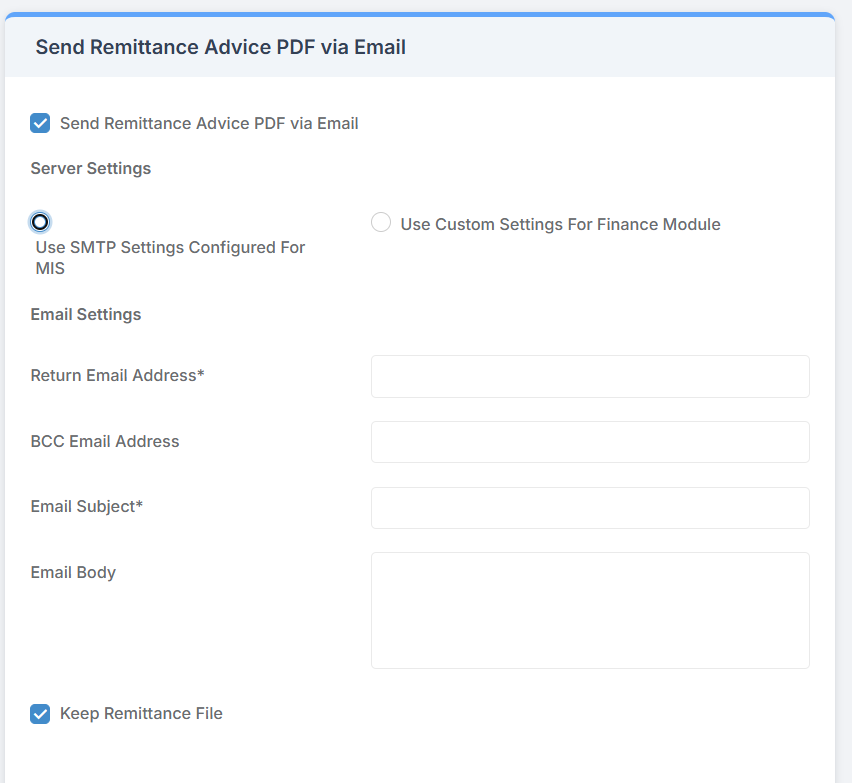
6. As shown above, ensure that the Use SMTP settings configured for MIS is enabled, unless you wish to configure a different mail server. You will then need to fill in the fields as per the below:

    • Return Email Address – The email address that will receive the replies from the supplier
    • BCC email address – If you wish to receive a copy of the sent emails you can enter it here
    • Message subject – the subject of your emails which is customisable ‘Purchase order from’ etc.
    • Message body – the body of the emails you send, customisable.

7. When you are satisfied your information is correct, click Save.

How useful was this article?

Click on a star to rate it!

Average rating / 5. Vote count:

No votes so far! Be the first to rate this post.

Similar Posts

  • Bromcom Finance: How do I add a Petty Cash into the new year

    If you have not run preliminary close in the old year and need money in Petty cash  “Cash In hand” you can add a temporary reimbursement as follows: Modules> Finance> Homepage>General ledger> Petty cash processing Click “Add Reimbursement” as show below and add your details on the right of the example screen shot. Please note:…

  • Bromcom Finance and DTSApps: Download and Reformat process – DEVON SCHOOLS

      IMPORTANT: New Process – there is no longer a requirement to log into Devon Transfer to download your reconciliation files, please see step 2 Schools using Scomis DTSApps will process available files using the DTSApps download area as follows: Log into DTSApps with your login credentials  From the menu on the left, click “Reformat”…

  • Bromcom Finance: How do I setup a Free Text (Sundry) invoice

    Sundry Invoices should be raised for ad hoc and/or infrequent payments e.g. for payments to staff. You cannot raise a purchase order or free text order against sundry suppliers. Sundry suppliers and invoices can be setup as below: Browse to Modules> Finance> Homepage>Supplier and complete the supplier setup if not already done Tick “Sundry Supplier”…

  • Bromcom Finance: How to add Base Pay Mapping?

    Please see the following guide on how to map your base pay: Modules> Finance> Homepage> Staff> Base Pay mapping Base Pay Mapping How useful was this article? Click on a star to rate it! Submit Rating Average rating / 5. Vote count: No votes so far! Be the first to rate this post.

  • Bromcom Finance and DTSApps : How do I process my Petty cash file PLYMOUTH SCHOOLS

    In Bromcom navigate to Modules> Finance> Homepage> General ledger> Petty Cash Processing. 1) Click the yellow button to add an expenditure or green button to add a reimbursement 2) Add your expense lines on the right hand side 3) Once you have added your expense lines, save and post. Once this has been done you…