How to connect a Google Chromebook to a Wireless Network.

To connect your Google Chromebook to a Wi-Fi or Wireless Network.

1: Start up the Chromebook.

2: Click on the Network icon in the lower left hand corner
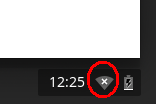
3: If no networks are listed then first check that the Wireless Connection is enabled, then click on the words ‘No Network’.
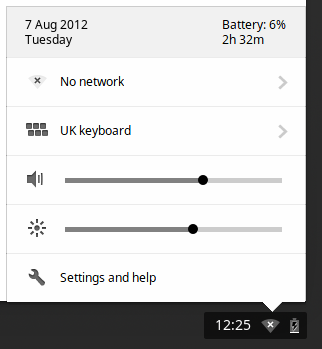
4: This will now display a list of all available and visible Wireless Networks as below.
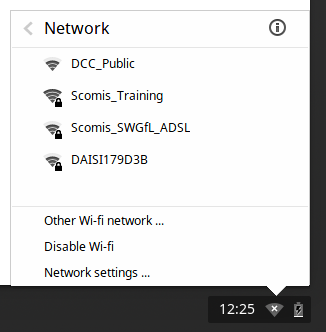
 

5: Select the network you wish to join and click on its name.


If the Network is secured and password protected you will then be prompted to enter the password. Once you have entered the password click on Connect.

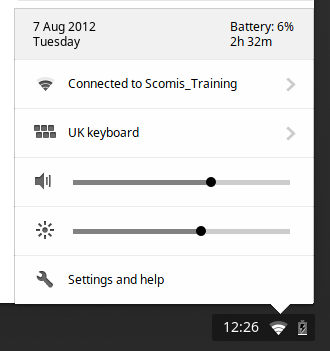
6: You should now be connected to the Wireless network – the Network icon should change to a series of bars indicating signal strength, and the network name will be displayed as below.
 

Reviewed on 08/04/2016


How useful was this article?

Click on a star to rate it!

Average rating / 5. Vote count:

No votes so far! Be the first to rate this post.

Similar Posts

  • How to configure your Google Chromebook to use a Proxy Server

    Some networks require you to use a proxy server to access the Internet. A proxy server is another computer or device that acts as an intermediary between you and the Internet by relaying your requests to a server and the servers responses back to you. Unfortunately, this type of setup requires you to specify certain…

  • Firewall and proxy settings for Google Drive

    Before users on your network will be able to access Google Drive and Google Docs editors, your firewall rules should connect to the following hosts and ports. Otherwise, users may be blocked or denied access from these services. For the following hosts, [N] means any single decimal digit and * means any string not containing a…

  • Top 15 Windows 8 Shortcut Keys.

    Top 15 Windows 8 Shortcut Keys. With the changes made to Windows with the introduction of Windows8 and the new Metro tile interface some important items are no longer accessible in the same way as before. Below is a list of Windows8 shortcut keys that will allow users to find the most common features, information…

  • Adding SWGfL Proxy Settings to mobile devices (iPad, iPhone, Android)

    Add SWGfL proxy server settings to my iPad or iPhone 1. Navigate to the ‘Settings’ app and tap on ‘WiFi’ 2. Next, tap on the WiFi network you need to add the proxy to. This should be one you are currently connected to. 3. This next page will display all of your network information, for the network you…

  • My keyboard and /or mouse do not respond…

    Ensure that both devices are plugged securely into the computer – for wireless devices check the wireless receiver is plugged in.
    Try connecting them to different USB ports……