How to configure your Google Chromebook to use a Proxy Server

Some networks require you to use a proxy server to access the Internet. A proxy server is another computer or device that acts as an intermediary between you and the Internet by relaying your requests to a server and the servers responses back to you. Unfortunately, this type of setup requires you to specify certain settings in order for you to use the Internet properly. This section will provide information on how to configure your Chromebook to use a proxy server

1: Start up your Google Chromebook.

2: Click on the Network icon in the corner of your screen.
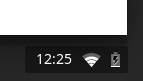
 3: Then select and click on Settings
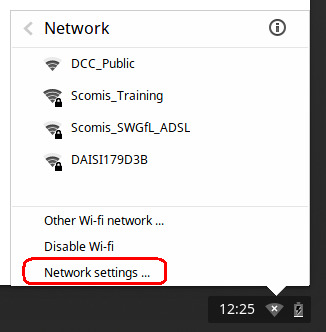
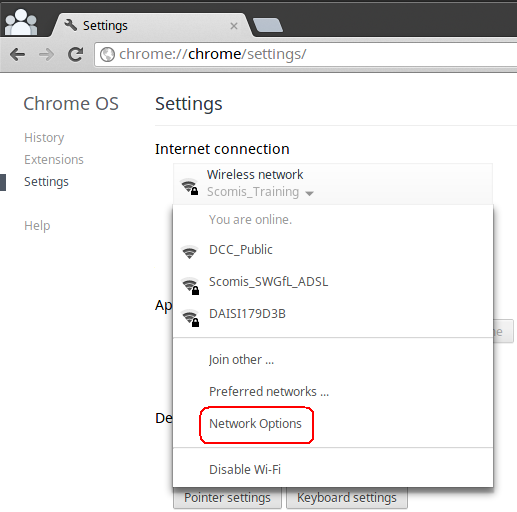
4: Select your network and from the drop down list select Network Options
5: Click on the Proxy tab, and change the settings from Direct Internet Connection to Manual proxy configuration.
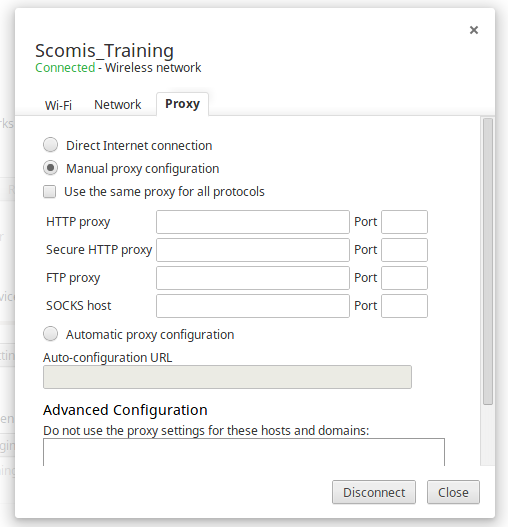
6: Add the name and port number of your Internet Proxy Server and close the form.

7: Alternatively if you have a configuration URL that contains your proxy settings, then simply select Automatic configuration on the above screen and enter the URL, then close the form.

You should now be able to access the internet.


Reviewed on 12/01/2026

How useful was this article?

Click on a star to rate it!

Average rating / 5. Vote count:

No votes so far! Be the first to rate this post.

Similar Posts

  • Essential Windows Keyboard Shortcuts

    Windows includes a wide range of keyboard shortcuts that help you work faster and navigate the system more efficiently. The shortcuts in this post cover the most commonly used features across modern versions of Windows.

  • Adding SWGfL Proxy Settings to mobile devices (iPad, iPhone, Android)

    Add SWGfL proxy server settings to my iPad or iPhone 1. Navigate to the ‘Settings’ app and tap on ‘WiFi’ 2. Next, tap on the WiFi network you need to add the proxy to. This should be one you are currently connected to. 3. This next page will display all of your network information, for the network you…

  • Hosted Applications – Can’t connect to the remote computer using the specified forward proxy configuration

    When connecting to the Scomis Hosted Applications service, if you receive the following error: “Can’t connect to the remote computer using the specified forward proxy configuration” Check to see if you can access the internet and one of the following websites in Internet Explorer (not Chrome) : https://gw.scomis.org https://gw-eclipse.rdp.scomis.org https://gw-swgfl.rdp.scomis.org Check that the proxy in…

  • How to Check Whether a Computer Is Reachable on the Network (macOS)

    Modern versions of macOS no longer include the old Network Utility app. Instead, you can use Terminal or built‑in Finder tools to send a ping — a small packet of data used to test whether another device is reachable on the network. Method 1: Use Terminal (recommended) Open Terminal Go to Applications → Utilities →…

  • Windows – Map network drive for Admin F & G drives

    How to Map a Network Drive in Windows You can map a network drive in Windows to give yourself quick access to shared folders on a server. Follow the steps below to set this up. Make sure you have the correct login details To access a shared folder on a server, you’ll need: A user…

  • Finding your iPad’s MAC Address

    If your the wireless network you are connecting to is a Managed Network, then you may need to provide your Network Administrator with the iPad’s MAC Address. The screenshots are from older versions of iOS, but the process remains the same. To obtain this first Tap on the Settings Icon… Once in the settings application,…